AI Features Overview
Vulnotes integrates AI throughout the platform to help you write reports faster. From generating vulnerability descriptions to translating content across languages, AI acts as a writing assistant that you can use when needed.
Supported providers
Vulnotes supports multiple AI providers. Your administrator configures which one to use in Administration > Settings > AI Settings. The available providers are:
- Vulnotes AI - the managed service
- OpenAI
- Anthropic (Claude)
- Google (Gemini)
- Groq
- Azure OpenAI, Mistral, Together AI, DeepSeek, and OpenRouter
- Ollama or a Custom provider using the OpenAI-compatible API format
Your administrator selects the provider, model, and connection settings. The quality and capabilities of the selected model affect the results. Screenshot analysis needs a model that can read images and can use a separate provider from text generation.
AI can be disabled entirely or by feature. Offline installations need a configured local provider; the managed Vulnotes services are not available in that edition.
Configure a provider
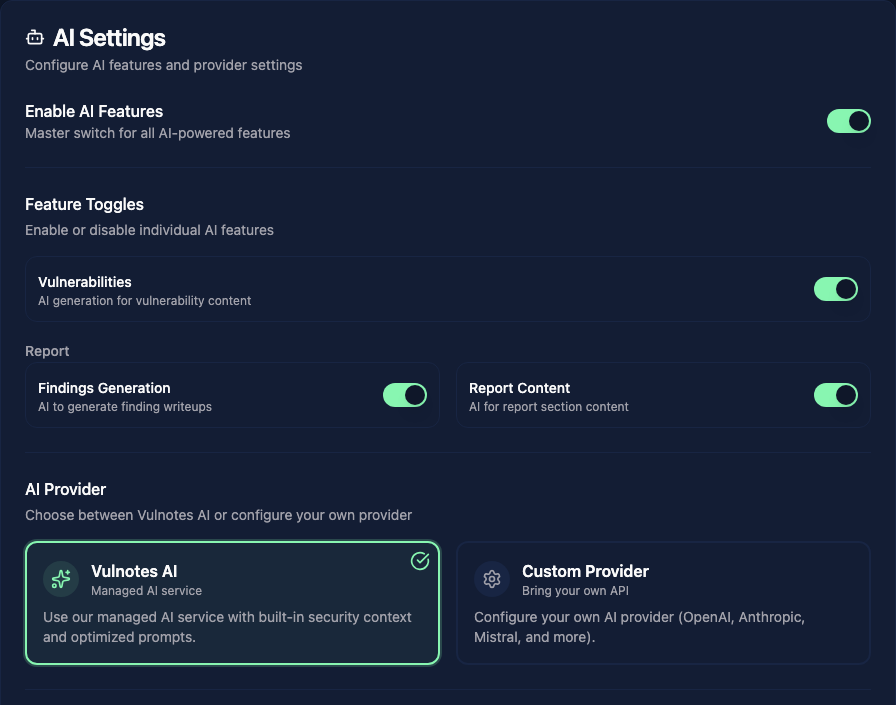
Open AI Settings and turn on Enable AI Features. Choose Vulnotes AI for the managed service, or Custom Provider to use your own connection.
For a custom provider:
- Select Provider Type, then enter the API Key if the provider requires one.
- Check Base URL and Model Name. For a local service, use an address reachable from the Vulnotes server.
- Click Test Provider. Once it connects, click Save Provider Settings.
Use Feature Toggles to enable or disable Vulnerabilities, Findings Generation, and Report Content. These switches save when changed.
Image analysis
With a custom provider, Vision (image analysis) can use the main model, Vulnotes vision, a separate Custom model, or be Disabled. The main model must support images if you choose Use main model.
For a separate model, enter its provider, endpoint, key, and model name. Use Test Vision, then Save Vision Settings. Managed vision is unavailable in offline installations.
Where AI is available
AI features appear in several places:
- Report content sections - generate or improve section content
- Findings - generate descriptions, impact, remediation for individual findings
- Vulnerability library - draft a full entry from a description
- Translation - translate vulnerabilities to other languages
- Screenshots - draft a report finding from images and a description
Data anonymization
Vulnotes replaces recognized sensitive text with placeholders before AI requests and restores the original values in the response. Report context also helps it recognize the client and contacts.
Detection is not exhaustive, and text anonymization does not hide information inside images. Review the content you send and use the screenshot redaction editor when needed. See Anonymization for details.