

Custom Variables
Custom variables let you define editable sections in your report template. When a report is created from the template, users fill in these sections with content specific to the engagement: executive summaries, methodology descriptions, scope details, etc.
Adding custom variables
In the template editor, open the Vars tab in the sidebar to manage custom variables.
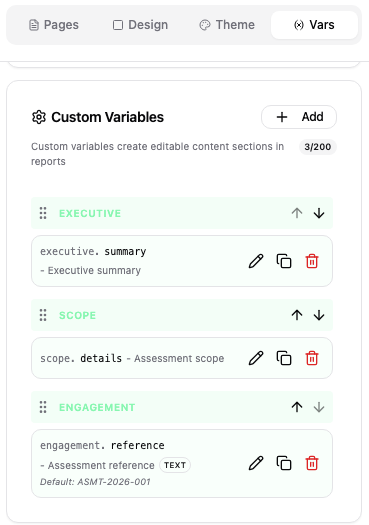
Each custom variable has:
| Field | Description |
|---|---|
| Name (key) | Variable identifier using dot notation for grouping (e.g. executive.summary) |
| Description | Label displayed in the report editor |
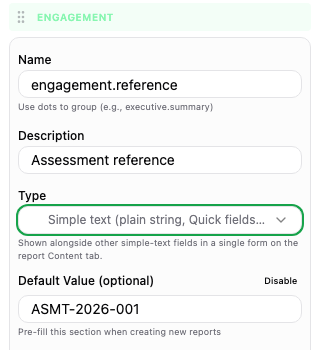
| Type | Rich text for a formatted section, or Simple text for a short plain value |
Rich text variables get their own section in the report's Content tab. Simple text variables appear together in Quick fields, which is useful for reference numbers, environment names, and other short values. Both types use the same LiquidJS variable syntax.
The table of contents is built from headings in the rendered document. A variable's description does not add a heading by itself.
Grouping with dot notation
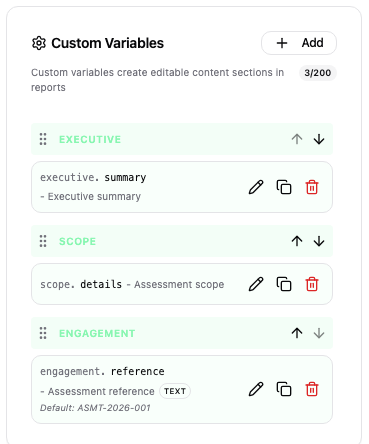
Use dots in the variable name to group related sections together. The prefix before the first dot becomes the category name.
| Variable key | Category | Section |
|---|---|---|
executive.summary | Executive | Summary |
executive.overview | Executive | Overview |
methodology.approach | Methodology | Approach |
methodology.tools | Methodology | Tools |
scope.details | Scope | Details |
Categories can be reordered by dragging the category headers in the variables tab.
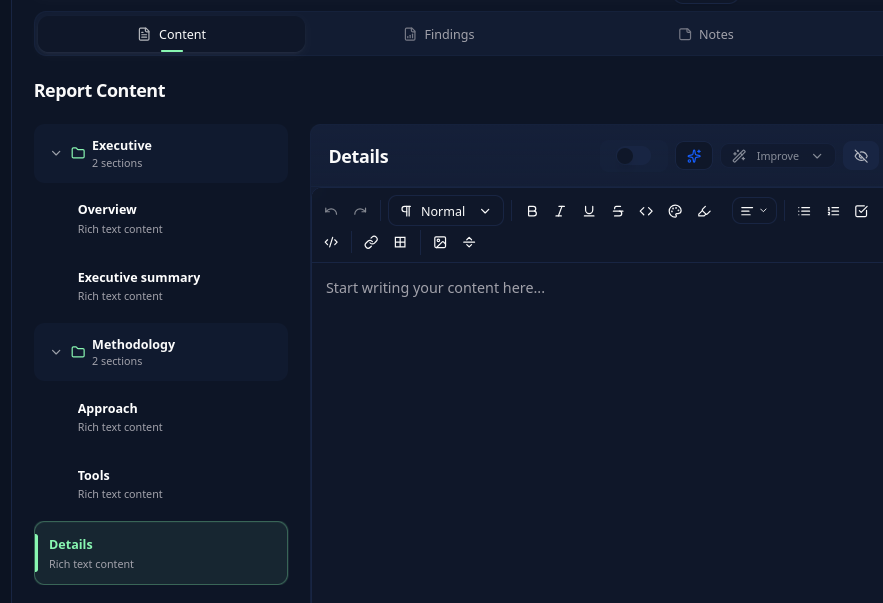
In the report editor, categories with at least two rich text sections become collapsible groups. A category with one section appears directly in the sidebar:
Default values
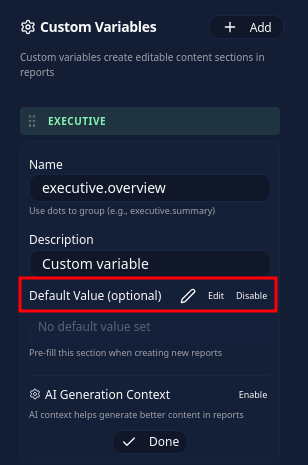
Each variable can have a default value that is pre-filled when a new report is created from the template. This is useful for boilerplate content that is reused across reports, like methodology descriptions or disclaimer text.
Enable Default Value (optional). For rich text, click Edit to write the default content; for simple text, enter the value directly.
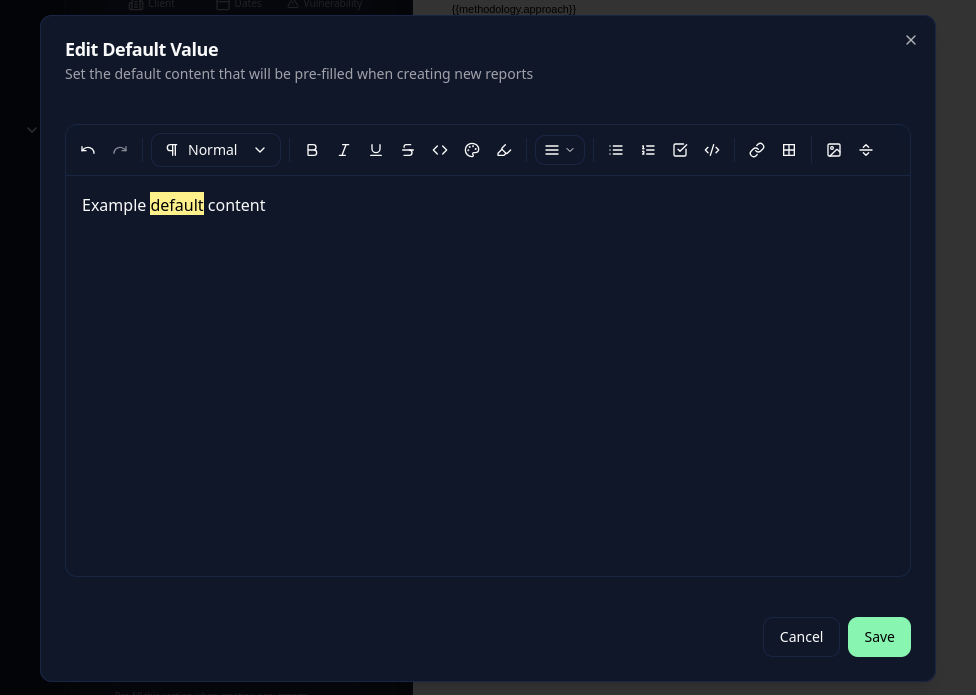
A rich text editor opens where you can write the default content:
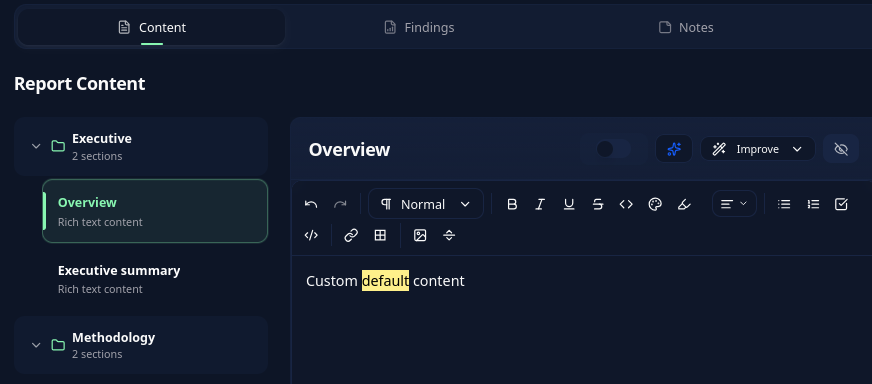
When a user creates a report from this template, the section will be pre-filled with this content:
AI generation context
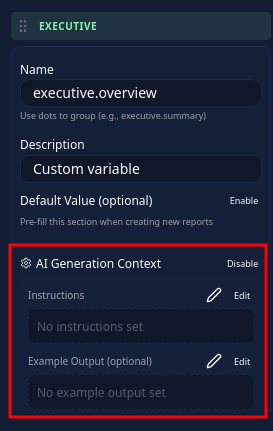
Each custom variable can be configured with AI generation instructions. When enabled, users can generate content for the section directly in the report editor using AI. The AI uses your instructions, the report context (vulnerabilities, scope, client, etc.), and the selected tone to produce relevant content.
Configuration
| Field | Description |
|---|---|
| Instructions | Describe what the AI should generate for this section. Be specific about what to include, the expected length, and any formatting requirements. |
| Example output | Provide an example of what the generated content should look like. This helps the AI match your expected format and style. |
| Tone | Writing style for the generated content |
Available tones
| Tone | Description |
|---|---|
Professional | Balanced, business-appropriate language |
Technical | Detailed, technical terminology |
Executive | High-level, concise for non-technical audiences |
Custom | Define your own tone in the instructions |
Using AI generation in reports
When editing a report, sections with AI generation enabled show a Generate button. Clicking it opens a dialog where you can optionally add extra instructions before generating.
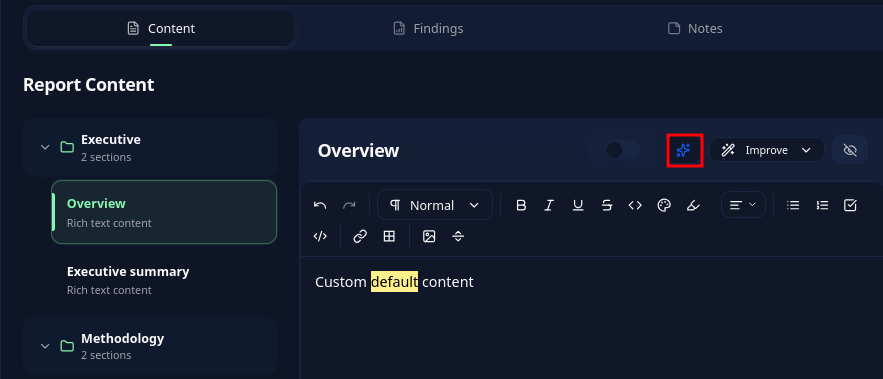
The AI can use report context when generating:
- Report metadata (title, dates, version, authors)
- Client information
- Assessment scope and targets
- All vulnerability findings with severities and details
- Content already written in other sections
INFO
Recognized sensitive text is masked before AI requests and restored in the response. Review the input and see Anonymization for the limits of automatic detection.
Findings AI context
At the template level, you can configure AI instructions for generating vulnerability finding content. This is separate from custom variable AI; it guides AI when generating or completing individual vulnerability writeups.
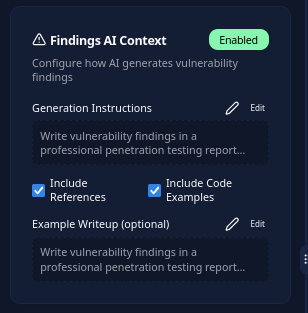
This section appears in the variables tab when a vulnerability template is linked to the report template.
Configuration
| Field | Description |
|---|---|
| Generation instructions | General guidelines for writing vulnerability findings |
| Example writeup | A complete example vulnerability writeup for the AI to learn from |
| Include references | Whether to include external references and links |
| Include code examples | Whether to include code snippets in findings |
The structure of each finding is automatically derived from the linked vulnerability template fields.
Example of generation instructions:
Write vulnerability findings in a professional penetration testing report style. Each finding should clearly explain the technical risk to a mixed audience of developers and management. Always include concrete remediation steps with specific configuration examples or code fixes when applicable. Reference OWASP, CWE, or CVE identifiers where relevant. Keep descriptions factual and avoid speculative language. Do not use bullet points for remediation steps.
Example of a writeup:
Description
During testing of the authentication endpoint /api/v1/login, it was identified that the application does not enforce rate limiting on login attempts. An attacker can perform unlimited authentication attempts without being blocked or throttled, enabling brute-force attacks against user credentials.
Impact
An attacker could leverage automated tools to enumerate valid credentials, potentially gaining unauthorized access to user accounts. This is particularly critical for accounts with weak passwords or commonly reused credentials. Compromised accounts could lead to data exfiltration or lateral movement within the application.
Remediation
Implement rate limiting on the login endpoint, for example a maximum of 5 attempts per minute per IP address. Add account lockout after 10 consecutive failed attempts with a 15-minute cooldown period. Implement CAPTCHA challenges after 3 failed attempts. Consider using a WAF rule to detect and block brute-force patterns.
References
CWE-307: Improper Restriction of Excessive Authentication Attempts OWASP Testing Guide: Testing for Brute Force (OTG-AUTHN-003)
Available tones
| Tone | Description |
|---|---|
Professional | Balanced, business-appropriate language |
Technical | Detailed, technical terminology |
Executive | High-level, concise for non-technical audiences |
Remediation-focused | Emphasis on how to fix the issue |
Custom | Define your own tone in the instructions |
AI-assisted finding creation
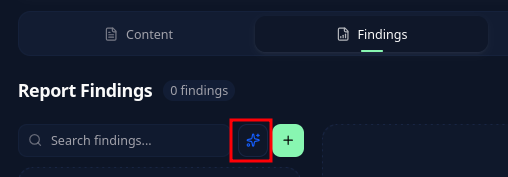
In the report editor, users can generate findings from a description or from screenshots. The AI uses the findings AI context to produce a complete vulnerability writeup matching your template fields.
Using custom variables in templates
Custom variables are accessible in your template pages under the custom object:
{{ custom.executive.summary }}
{{ custom.methodology.approach }}
{{ custom.scope.details }}
Rich text variables render formatted content including paragraphs, lists, and bold text. Simple text variables render a plain value.
{% if custom.executive.summary != blank %}
  {{ custom.executive.summary }}
{% endif %}