
Findings
Findings are the vulnerability entries inside your report. Each finding describes a security issue you discovered during the assessment, along with its technical details, severity, proof of concept, and remediation advice.
The Findings tab
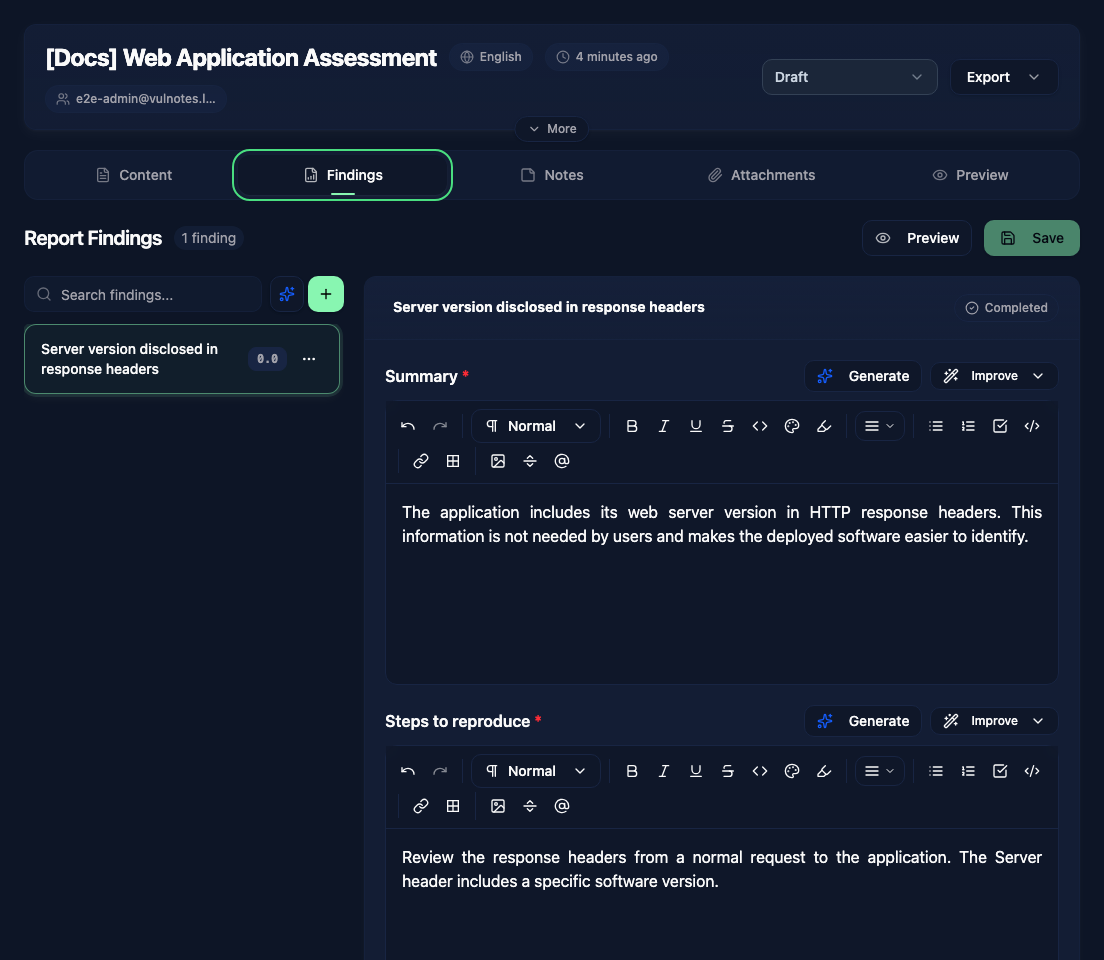
Click Findings in the report tabs to see all findings for the current report. The left sidebar lists every finding with its title and score. Click on a finding to open it in the editor.
Adding a finding
Click the + button at the top of the findings sidebar to add a finding:
- From library - pick an existing vulnerability from your vulnerability library. The finding fields are pre-filled with the library entry's content, which you can then customize for this specific report.
- Create Empty Finding - start from scratch with an empty finding that follows the vulnerability template linked to your report.
When you add a finding from the library, the content is copied into the report. Changes to the finding in the report do not affect the original library entry, and vice versa.
If the report uses several vulnerability templates, choose the one that fits the finding. Each finding keeps its own fields.
Finding fields
The fields available in each finding depend on the vulnerability template associated with your report template. Common fields include:
- Title - the vulnerability name
- Description - technical description with rich text formatting
- Impact - what an attacker can achieve by exploiting this vulnerability
- Remediation - how to fix or mitigate the issue
- Score - interactive CVSS v3.1, v4.0 or custom score calculator
- References - links to relevant resources (CWE, OWASP, vendor advisories)
- Proof of Concept - steps to reproduce, including screenshots and code
These fields are configurable through vulnerability templates. Your admin can add dropdowns, tags, dates, numbers, and custom scores.
AI-assisted content
When your administrator has enabled AI for findings, supported text fields offer two actions:
- Generate - creates content from scratch based on the vulnerability title and context
- Improve - offers Improve Writing, Improve Clarity, Make More Technical, Expand Content, and Summarize
This is particularly useful for writing detailed descriptions and remediation steps quickly, then adjusting the output to match your style.
You can also create a finding from a description and screenshots with the AI finding dialog. Review the generated fields and score before saving.
Saving your work
Click Save after editing a finding, or use Ctrl+S / Cmd+S. Collaborators can see edits as you work, but you still need to save them. The finding preview refreshes after saving or when you refresh it manually.
Completing findings
Each finding has a Completed toggle at the top. Mark findings as completed as you finish writing them. This helps track progress when working on a report with many findings.
Finding order
The sidebar sorts findings by score, highest first, with severity used when scores are equal or unavailable. Custom scores are normalized for comparison. Use the search box to find a title. The order in the exported document comes from your template's loop and sorting filters.
Duplicating and reusing findings
Open the … menu on a finding to duplicate it or delete it. Save pending edits before duplicating.
Findings written in a report can also be sent to the vulnerability library from this menu. Depending on your permissions, the action either saves the finding to the library or sends it to administrators for review. It submits a copy of the saved finding, including its referenced images. Remove client-specific details before submitting it for reuse.
Retesting a client fix
When a client requests a retest, the finding shows a Retest button in the sidebar. Click it to open the request and its history.
After checking the fix, add a note explaining what you tested, then choose Verified fixed or Still vulnerable. The first sets the portal status to Fixed; the second returns it to Open. The result and your note are shared with the client and kept in the retest history.
The client's team discussion remains private to their portal team. Retest notes are the feedback exchanged with the pentesters.
Live preview
The preview panel on the right shows how the selected finding will look in the report. Toggle it with Hide Preview / Show Preview at the top of the page.