

Events
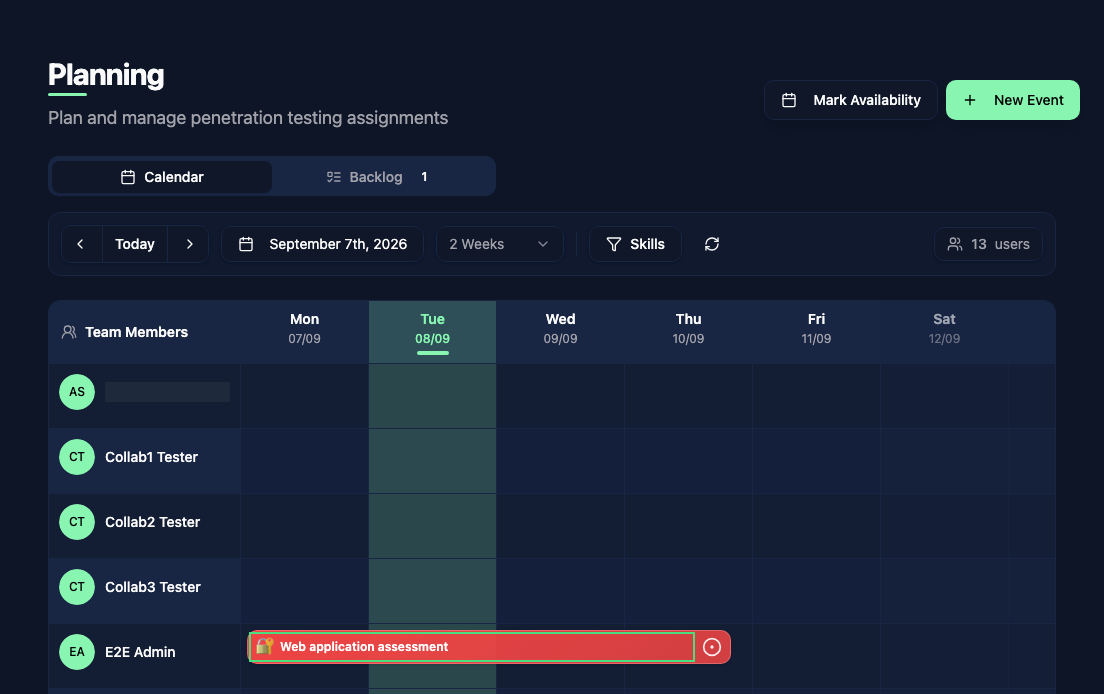
The Planning page gives you a timeline view of your team's schedule. It shows all team members as rows and their events spread across a calendar grid.
Creating an event
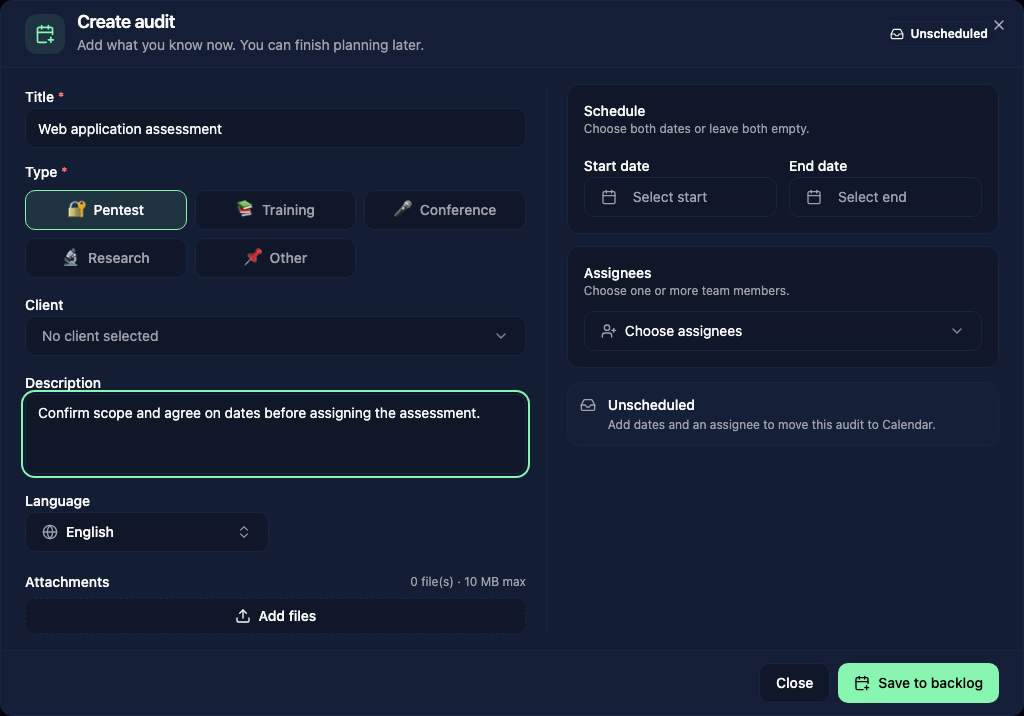
Click + New Event to create a new planning entry. Events represent any time block you want to schedule for a team member: a penetration test engagement, a conference, training, internal meetings, or anything else.
In the Create audit dialog, enter a Title and choose a type: Pentest, Training, Conference, Research, or Other. The type determines the event color.
For a pentest, you can also select a Client, Status, and Language. Add a description or attachments to keep engagement information with the event. Attachments can be up to 10 MB each.
Under Schedule, choose both dates, and use Assignees to select team members. Click Schedule audit to place the event on the calendar. It appears as a colored bar on each assignee's row.
Audit backlog
You can save an audit before its dates or assignees are known. Leave both dates empty, leave the assignees empty, or both, then click Save to backlog.
Open the Backlog tab to find these audits. They are grouped into Unscheduled, Needs dates, and Needs assignees. Use Add Audit to create another entry, or search by audit title, client, or person.
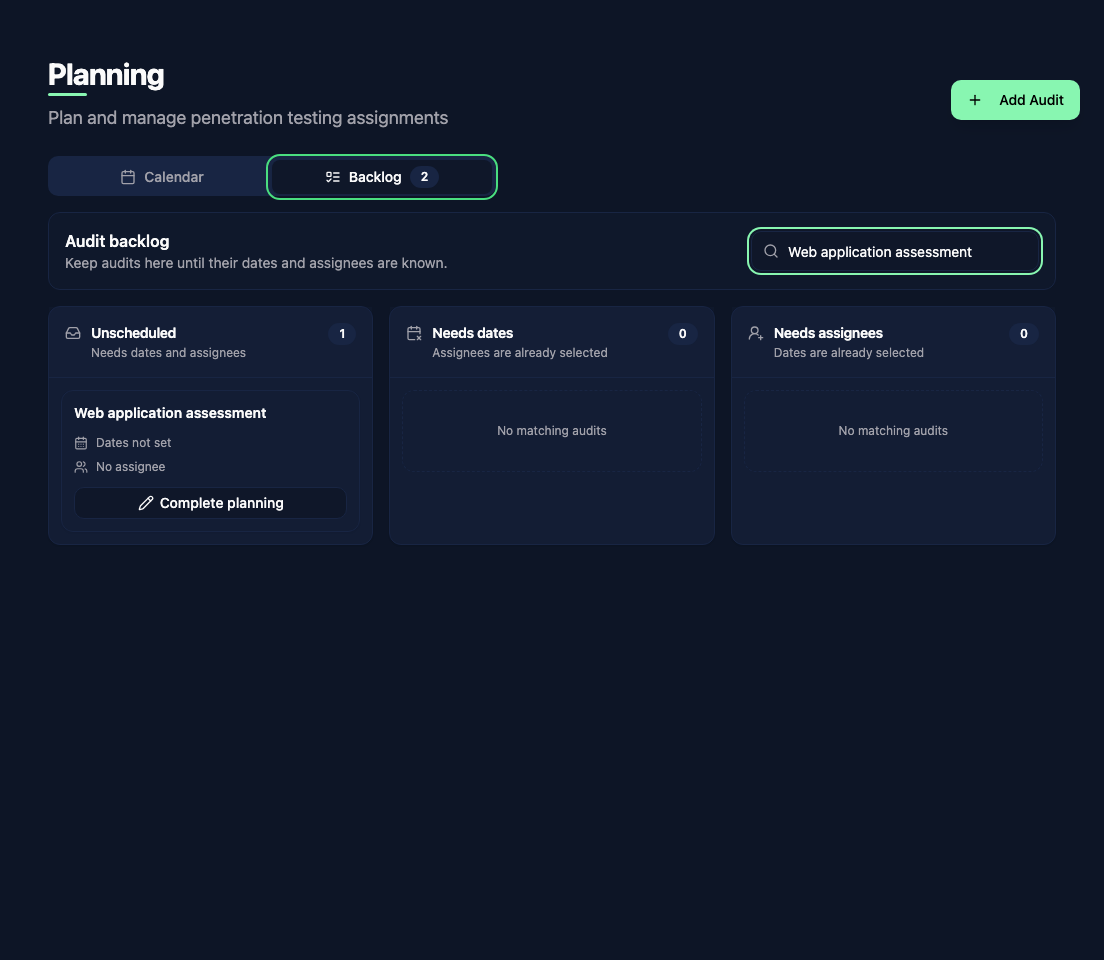
Open an entry, fill in its dates and assignees, then click Save changes to move it onto the calendar.
Edit or cancel an event
Click an event to open its details. You can update the schedule, assignees, and other information, then click Save changes.
Cancel event keeps the event with a cancelled status so it can be viewed or edited later. Delete removes it. Available actions depend on your planning permissions.
Navigating the calendar
Use the arrow buttons to move forward or backward in time. Today returns to the current period. Choose Week, 2 Weeks, or Month from the view dropdown.
The current day is highlighted on the grid so you can quickly see where you are in the schedule.
Skills filter
Click the Skills filter to show only team members with specific skills or roles. This is useful when you need to find available pentesters with a particular expertise for an upcoming engagement.