
Creating Vulnerabilities
Open Vulnerabilities and click New Vulnerability. First select which vulnerability template it should belong to. This determines the fields available for editing.
Then fill in the fields. Here is what a typical vulnerability looks like in the editor:
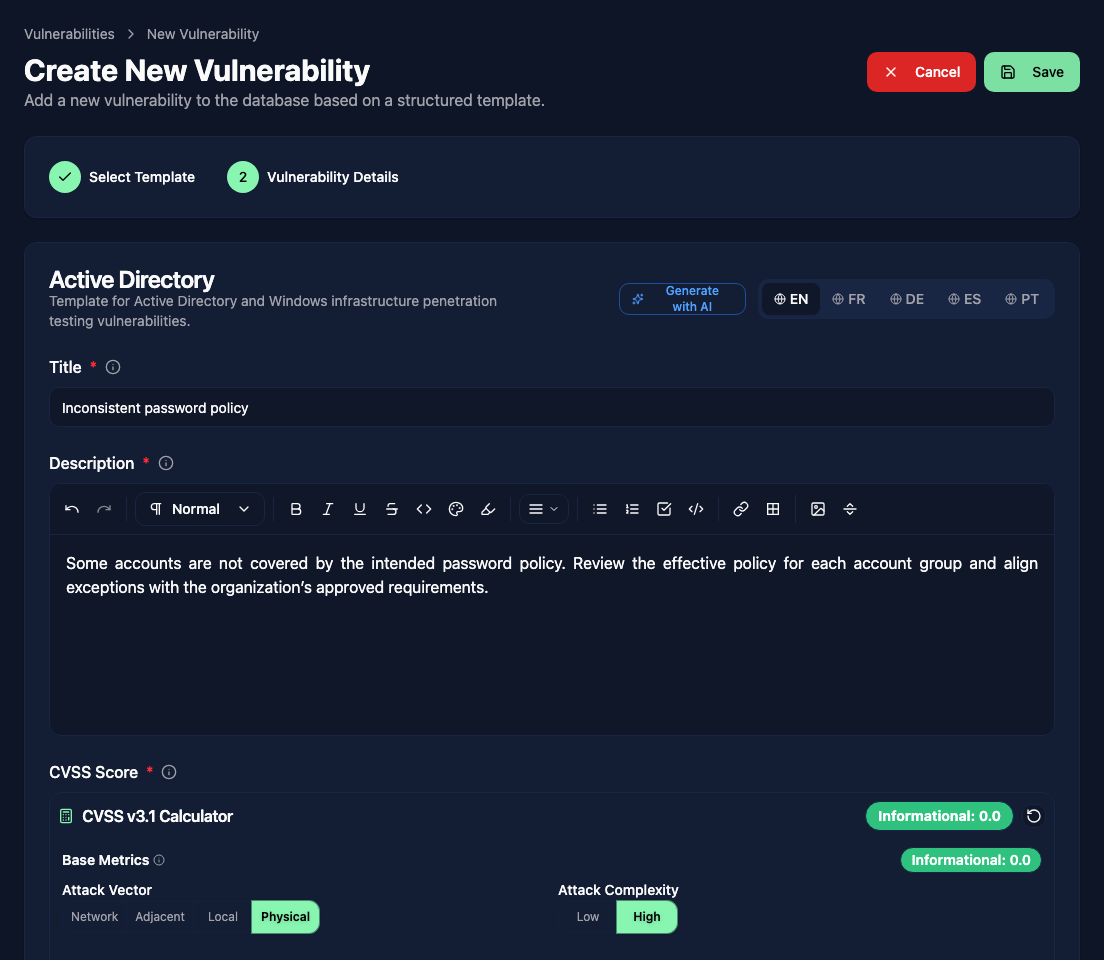
The fields shown depend on your vulnerability template. In this example, the Active Directory template provides a title, description, CVSS v3.1 calculator, and other fields defined in the template. Click Save when the entry is ready.
CVSS scoring
If your vulnerability template includes a CVSS field, you get an interactive calculator directly in the form. Select the values for each metric (Attack Vector, Attack Complexity, Privileges Required, etc.) and the score is calculated automatically.
Vulnotes supports CVSS v3.1, CVSS v4.0, and custom scoring. The template determines which calculator appears. See CVSS Scoring for details.
The score badge updates in real time as you adjust metrics, showing both the numeric score and the severity label (Critical, High, Medium, Low).
AI generation
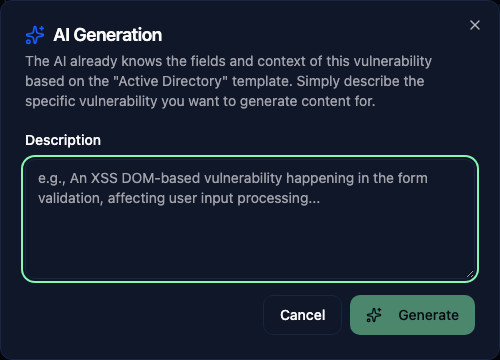 Click Generate with AI at the top of the vulnerability form to draft content for the fields defined in the template. Describe the vulnerability, then review the generated text before saving.
To translate an existing language version, switch to the target language tab and use the Translate button that shows the source and target languages. See Translation.
Multi-language editing
 If the vulnerability template supports multiple languages, you will see language tabs at the top of the form (EN, FR, DE, etc.). Click a language tab to switch to that version and write or edit the content in that language.
Each language version has its own set of field values. The title and text fields are translated independently, while non-text fields like CVSS scores are shared across all languages.