

Table
Tables support all basic formatting options like borders, rounded corners, and styling. But they also have extra features tailored for templating your reports that we will cover in this section.
Manipulating cells (merge, split, color..)
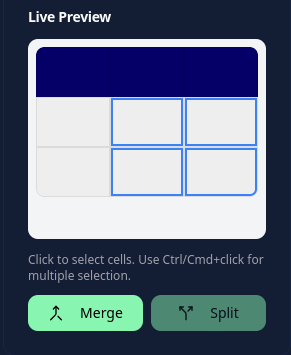
On the template canvas, click a cell to select it. Use Shift, Ctrl, or Cmd while clicking to select multiple cells. Select adjacent cells to merge them; split a merged cell to separate it again.
Color
Selected cells can use fixed colors or LiquidJS expressions for dynamic colors.
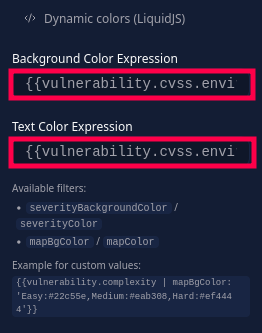
These examples assume the row loop uses vulnerability as its loop variable:
Map custom colors based on a list selection (complexity):
{{vulnerability.complexity | mapBgColor: 'Easy:#22c55e,Medium:#eab308,Hard:#ef4444'}}Use CVSS severity colors:
Background color:
{{vulnerability.cvss.score | backgroundColor}}

Text color:
{{vulnerability.cvss.score | textColor}}
Row loop
Enable a loop on selected cells to repeat their entire row for each item in an array. Enter the loop expression without {% %} tags, then use the loop variable in the row's cells.
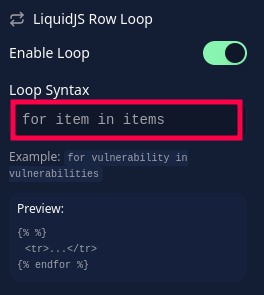
After activating the option, you will see the repeat emoji on the looped rows:

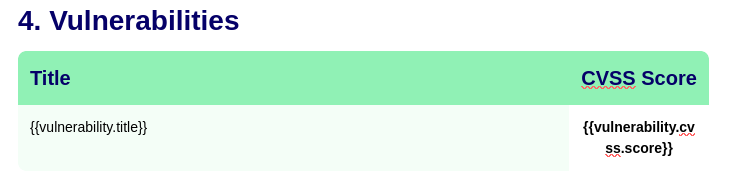
Example: Create a row for each vulnerability sorted from highest CVSS score to lowest
for vulnerability in vulnerabilities | sort_by: "cvss.score" | reverse| Template | Preview |
|---|---|
 | 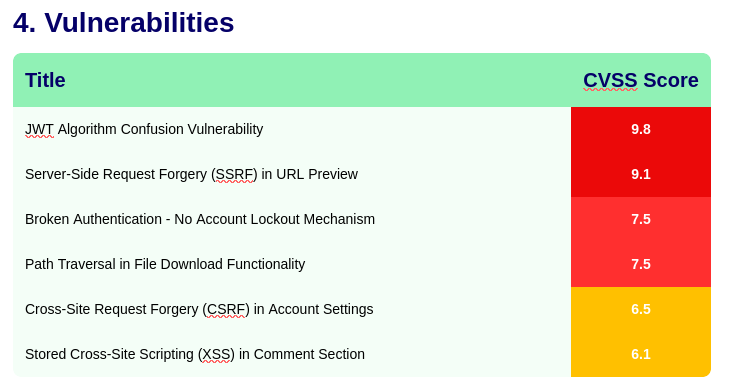 |
Customizing default report tables
Tables added through a report's rich text editor can inherit a design from your template. Select a reference table in the template and enable the default table style option to reuse its header and cell styling in report content.