

Report Sections & Content
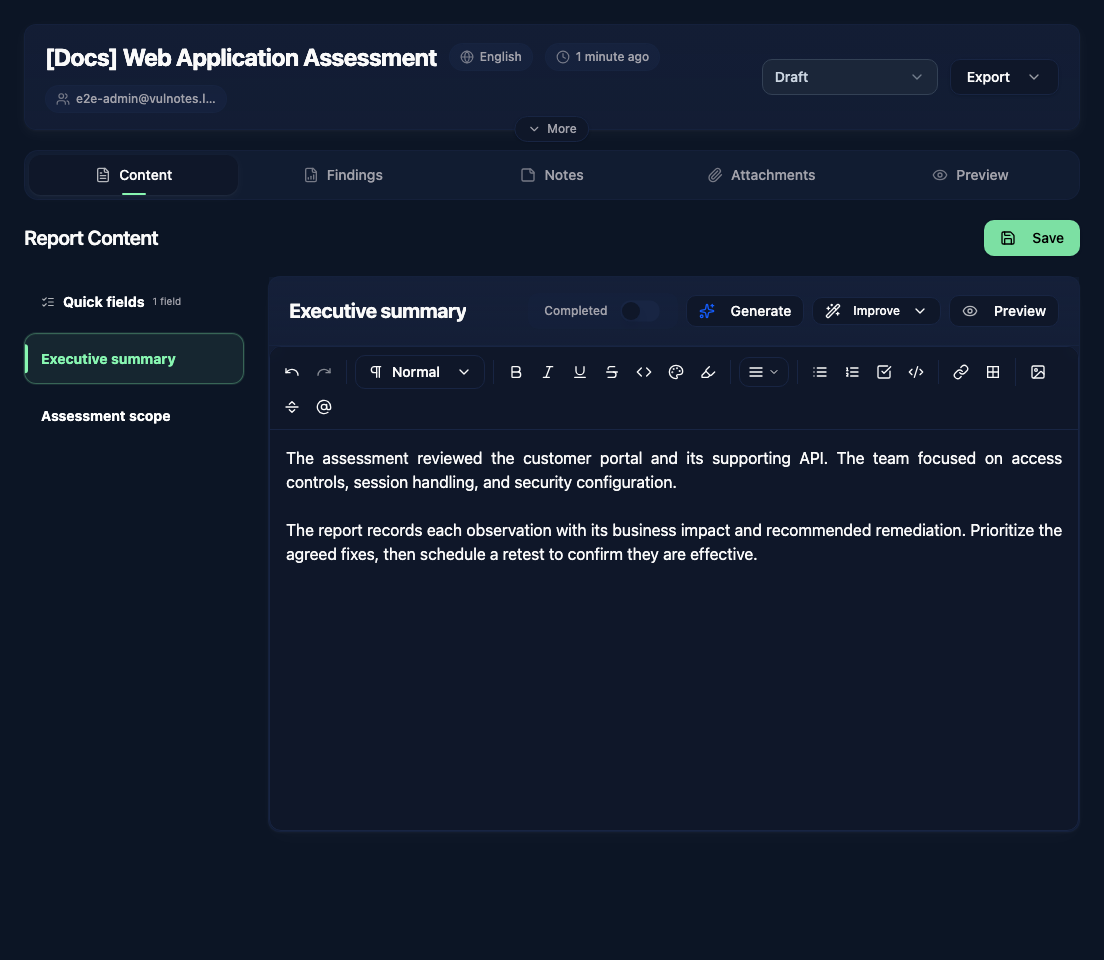
When you open a report, you land on the Content tab. This is where you write the narrative parts of your report: executive summary, methodology, scope description, and any other custom sections defined in your template.
How it works
The left sidebar lists all the content sections available in your report. These sections come from the custom variables defined on the report template you selected when creating the report. Click on any section to open it in the editor.
Rich text sections have their own editor for formatted content. Click Save, or use Ctrl+S / Cmd+S, to keep your changes. The preview on the right refreshes when you save or refresh it manually.
Templates can also define Simple text variables for short values such as a reference number or environment name. These appear together in Quick fields, at the top of the sidebar. Fill in the form and click Save; the Completed toggle marks all quick fields together.
Section toolbar
At the top of each section you will find a few useful controls:

- The toggle allows you to define if this section is completed or not.
- The AI sparkle icon opens the generation panel when AI is enabled for that section.
- Improve offers writing, clarity, technical detail, expansion, and summary options. See Content Improvement.
- The eye icon toggles the live preview panel on the right side.
Editing report metadata
Click More in the header bar to expand the report details panel. From there you can update:
- Report title
- Template (you can switch templates after creation)
- Language
- Start and end dates
- Client and contact selection
- Scope description and scope entries (IP, URL, or custom)
- Team members (author and co-authors)
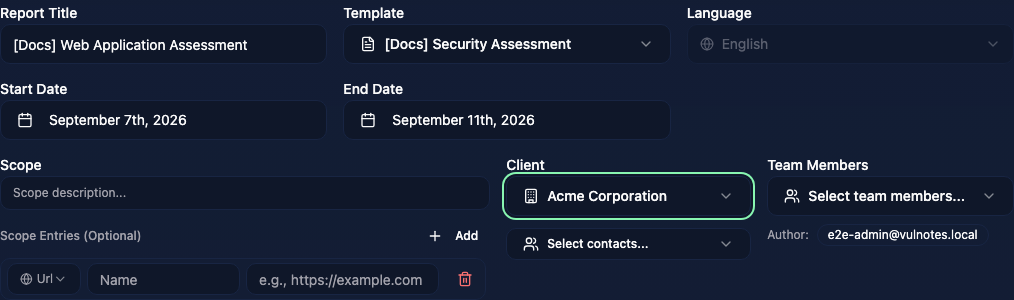
Metadata changes save automatically. When switching templates, Vulnotes shows which content fields are missing from the new template. Their saved values remain available if you switch back.
Working together
Team members with access can edit the report together. Avatars and presence indicators show who is working in it, and rich text edits are shared as you type. Use Save to persist section and finding changes. Coordinate edits to the same quick field, as the last saved value is kept.
Use the Notes tab for working notes that accompany the assessment.
Report status
The status dropdown in the top right corner controls the report lifecycle. Reports move through these stages:
- Draft - work in progress
- Waiting for Review - submitted for review
- Under Review - a reviewer is actively reviewing
- Completed - approved and finalized
Select a status from the dropdown. Moving into review creates a snapshot and replaces Preview with the Review tab. See Review & Approval Workflow for annotations and change tracking.