

Team Access
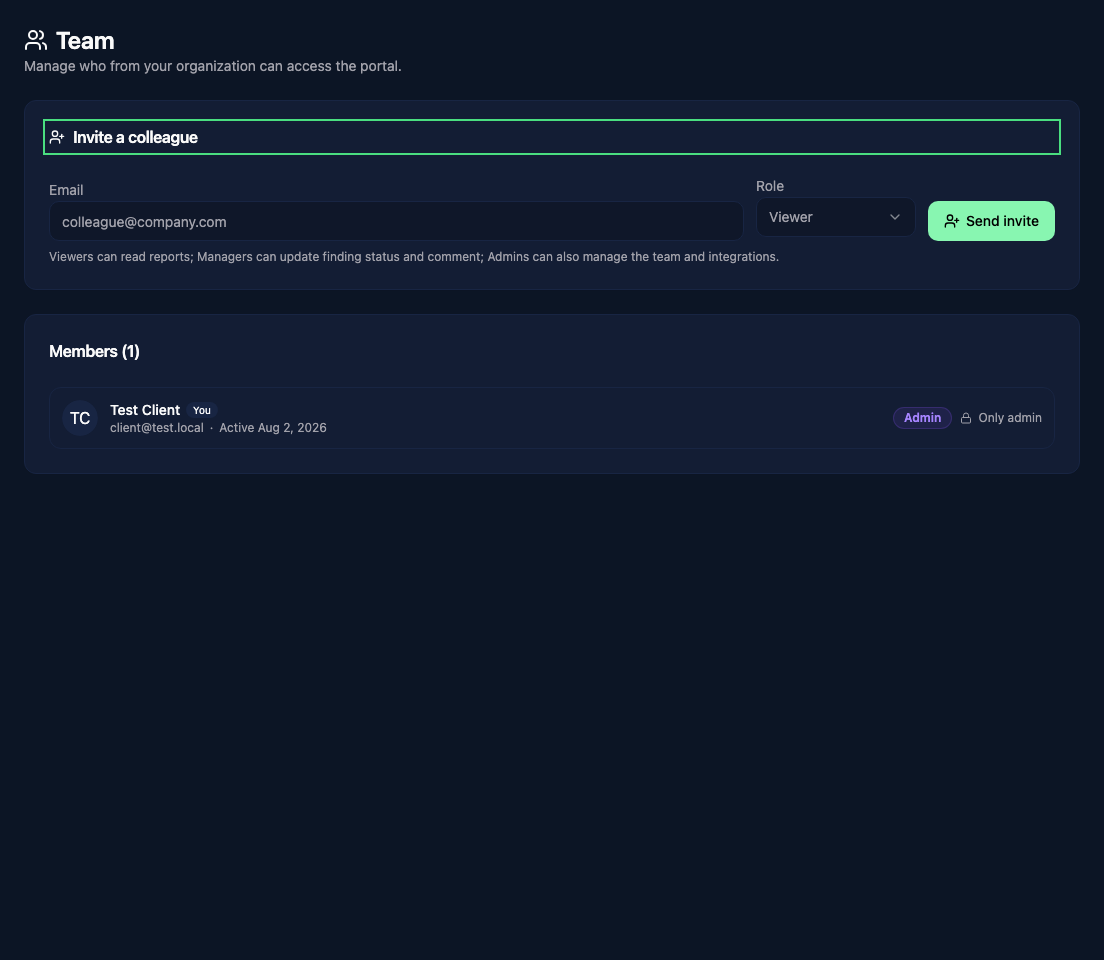
Client administrators manage their company's portal users from Team. Internal Vulnotes users can send the first invitations from Clients.
Roles
| Role | Access |
|---|---|
| Viewer | Read shared reports, findings, comments, statistics, and planning; download enabled formats |
| Manager | Viewer access, plus update remediation status, request retests, add comments, and create Jira tickets when enabled |
| Admin | Manager access, plus invite and manage team members and configure Jira |
Invite a colleague
Under Invite a colleague, enter their email, choose a Role, and click Send invite. They receive an activation link to create their portal account.
On first sign-in, every portal user must set up an authenticator app before accessing shared content. Follow the setup screen and save the backup codes. If you lose access to your authenticator, use a saved backup code. If none is available, ask your internal Vulnotes team to contact support.
Manage members
Use a member's role selector to change their access. Changes to or from Admin require confirmation.
Deactivate immediately removes portal access. The account moves to Deactivated, where Reactivate can restore it. You cannot change your own role or deactivate yourself here, and the last active administrator is protected from removal.
If an account has an expiry date, ask the internal Vulnotes team to extend its access from the company's record.