

Creating Reports
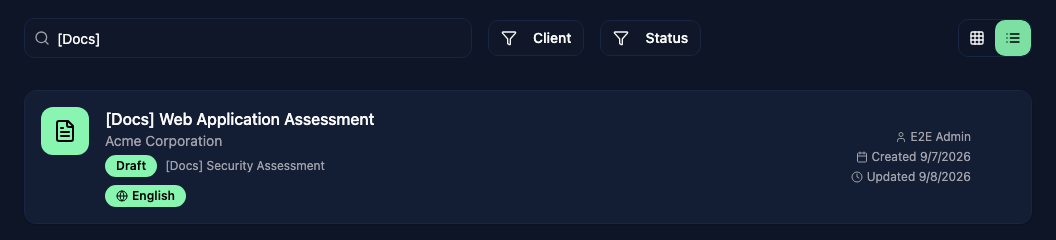
Open Reports to find your team's reports. Search by title or client, or filter by client and status. Click a report to continue editing it.
Choose a template
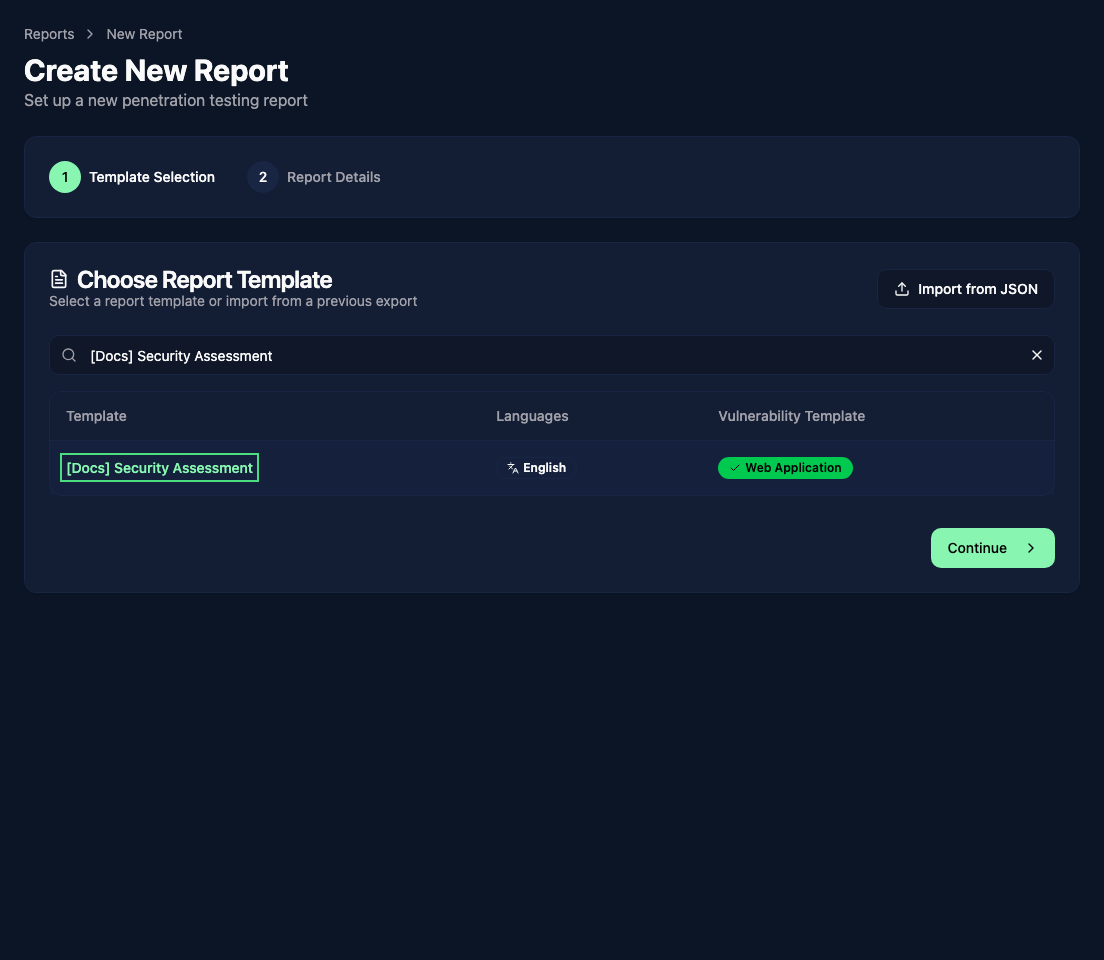
Click New Report. The first step lists available report templates, their languages, and linked vulnerability templates. Select one and continue to Report Details.
The report template must have at least one vulnerability template linked to it. If a link is missing, use Edit Template to Add Link before continuing.
Fill in the report details
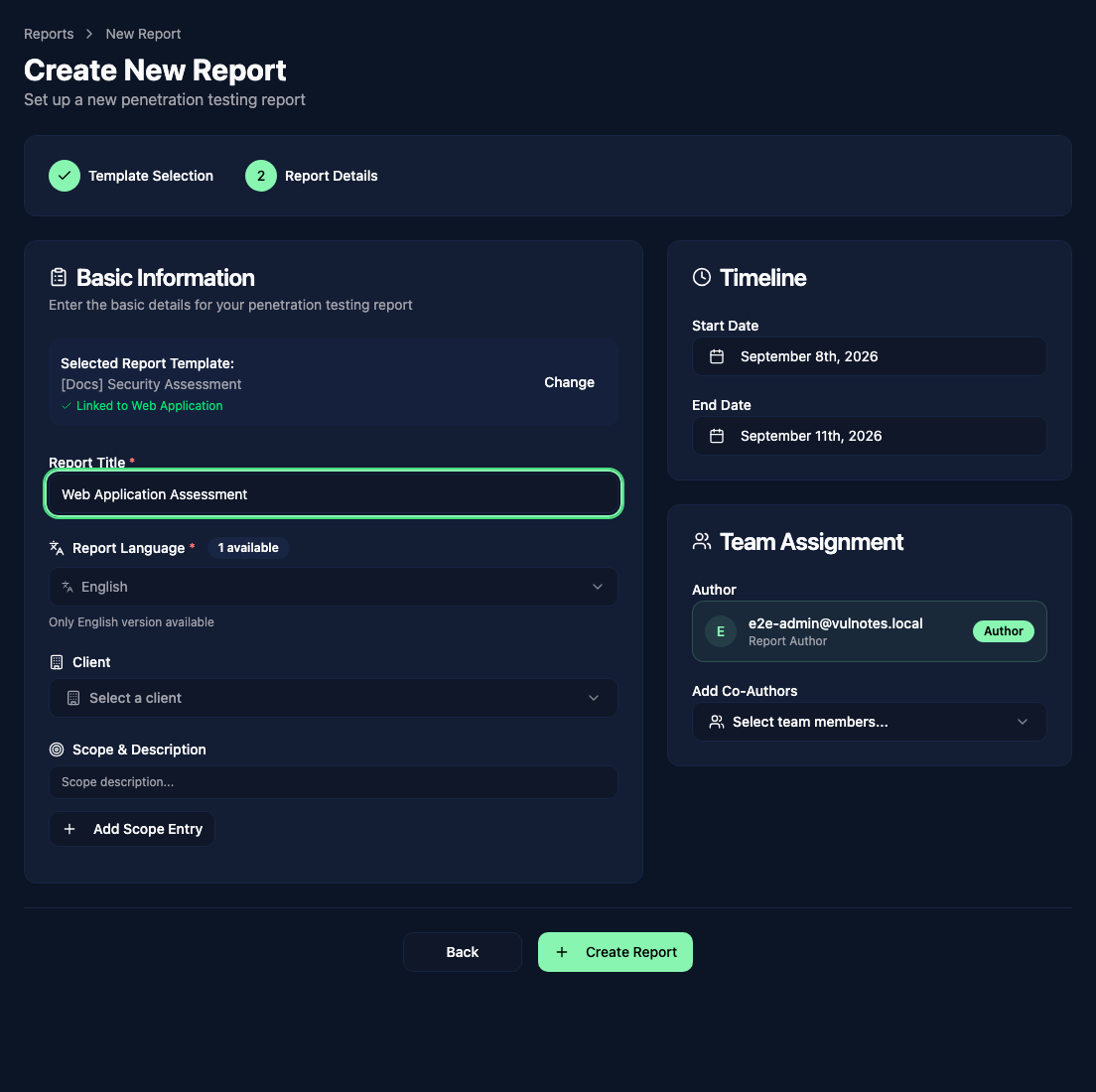
Enter a Title and choose a Language available for the selected template. Then fill in the engagement details:
- Client and contacts - select the company and the people the report is for.
- Scope & Description - describe the assessment and add its targets.
- Start Date and End Date - set the assessment period.
- Team Assignment - you are the author; add teammates as co-authors.
The client is optional. Click Create Report to open the new draft and start filling in its content sections and findings. Template default values are filled in for you.
If Create from Planning is available on the reports list, it starts a report with details from your assigned pentest already filled in.
Duplicate a report
Open a report's … menu on the list and choose Duplicate. Set the title and output language, and keep the current template or choose another one.
The copy starts as a draft in the same report group. Its content is independent: editing one report does not update the other. Changing the output language does not translate the text, so review the content in the selected language.
Import from JSON
On the template selection step, click Import from JSON and choose a Vulnotes report export. Check the import preview, choose whether to import the included template, then click Import Report.
If you leave Import Template off, Vulnotes looks for an existing template with the same name. Check the imported report's template and client details before editing. Imported reports start as drafts.
Delete a report
Choose Delete from the report's … menu and confirm. This cannot be undone from the interface. Export a JSON copy first if you need to keep a backup.