

Two-Factor Authentication (2FA)
Vulnotes supports verification codes from an authenticator app. Once enabled, you enter a code as well as your password when signing in.
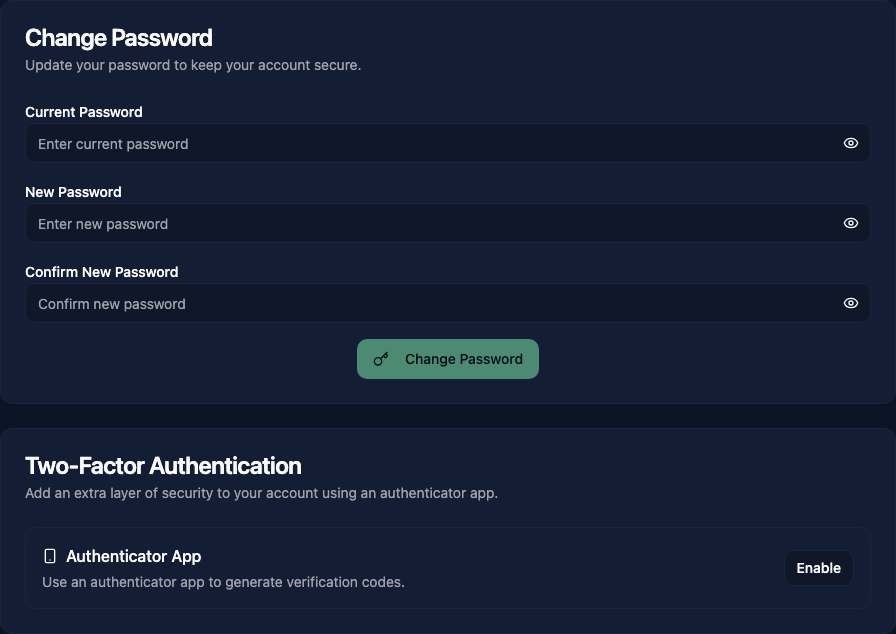
Set up an authenticator
- Open your profile from the bottom of the sidebar and select Security.
- Under Two-Factor Authentication, click Enable beside Authenticator App and confirm your password.
- Scan the QR code with your authenticator app, or enter the setup key manually.
- Save the backup codes in a secure place. They let you sign in if you lose access to your authenticator.
- Enter the six-digit Verification Code from the app and click Verify & Enable.
The Enabled badge confirms that setup is complete. If your organization requires two-factor authentication, Vulnotes directs you here to finish setup before you can continue using the application.
Disable two-factor authentication
Click Disable beside Authenticator App and confirm your password. Your organization's security policy may prevent you from disabling it.