
Personal Notes
Open Notes in the sidebar to keep checklists, research, and reusable text in your personal knowledge base. These notes belong to your account. Notes created inside a report are separate and are shared with users who can access that report.
Writing a note
Click New Note, then write in Markdown or use the formatting toolbar. The editor supports headings, lists, links, tables, code blocks, and images. You can paste an image from the clipboard or upload one with the image button.
Use the buttons above the editor to switch between editing, a split view, and the rendered preview. In split view, drag the divider to give either side more room.
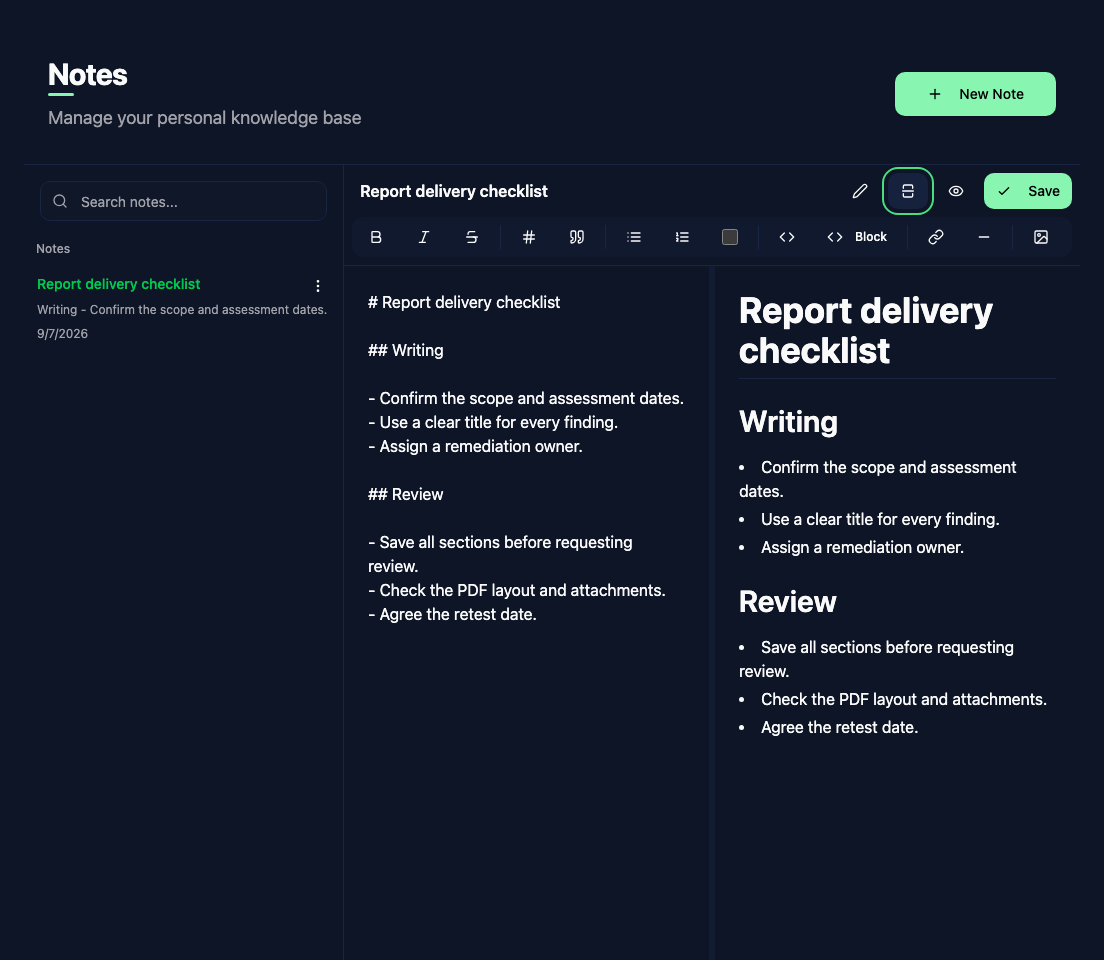
Click Save, or press Ctrl+S on Windows and Linux or ⌘S on macOS. Edits are not saved automatically. An Unsaved changes indicator stays visible until you save.
Finding and organizing notes
The search field matches note titles and content. Open a note's ⋮ menu and choose Pin to keep it at the top of the list, or Unpin to return it to the regular list. The same menu contains Delete, which asks for confirmation.
The sidebar uses the first Markdown heading as the note title, or the first non-empty line if there is no heading. Start with a short heading to make notes easier to find.
Access to Notes follows your report permissions: read access lets you view notes, and write access enables the editor controls.