

CVSS Scoring
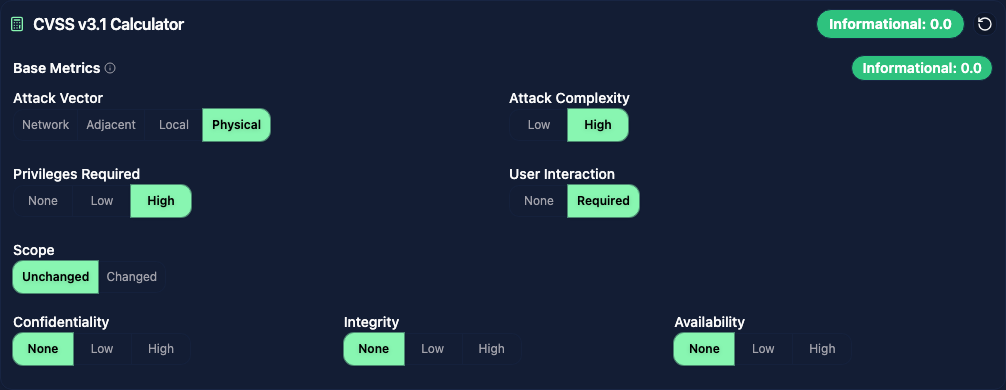
When a vulnerability template includes a CVSS field, the vulnerability and finding editors show an interactive calculator. The template chooses whether it uses CVSS v3.1 or CVSS v4.0.
Select the value for each metric in Base Metrics. The score and severity update as you change the selections. Save the vulnerability or finding to keep the result.
Additional metrics
The template can enable extra metric groups:
- Temporal Metrics in v3.1, or Threat Metrics in v4.0, account for factors such as exploit maturity.
- Environmental Metrics adjust the calculation for the affected environment and its security requirements.
If these groups are missing, edit the CVSS field in the vulnerability template and enable them there. The template also controls the colors used for severity badges.
Choose the right score
A library entry provides a reusable starting point. When you add it to a report, review the metric selections against the environment assessed. A score that fits one engagement may not fit another.
CVSS versions use different metrics and calculations. Keep the version and vector together when sharing a score.
Custom scoring
Use a Custom Score field when your team follows its own rating method, such as a combination of business impact and likelihood. This produces a custom score, not a CVSS vector.
- Open Vulnerabilities > Templates and edit a vulnerability template. Under Add Field Type, select Custom Score and give the field a name.
- Set Maximum Score and Display Precision to choose the scale and number of decimal places.
- Under Severity Labels, enter each label's minimum score, name, and color. For example, on a ten-point scale: Low from 0, Medium from 4, and High from 7.
- Click Add Criterion for each factor you want to assess. Give it a name, a Weight, and options with labels and numeric values. A higher weight gives that criterion more influence. Save the template when finished.
Use option values on a 0–10 scale. Vulnotes calculates their weighted average and scales it to Maximum Score.
In the vulnerability or finding editor, choose one option for each criterion. The score, label, and color update as you make selections; save the vulnerability or finding to keep them. If the field has no criteria, use the slider or number input to enter the score directly.