

Client Portal Settings
Client Portal settings are managed from Administration > Settings > Client Portal. These settings apply to every company using the portal.
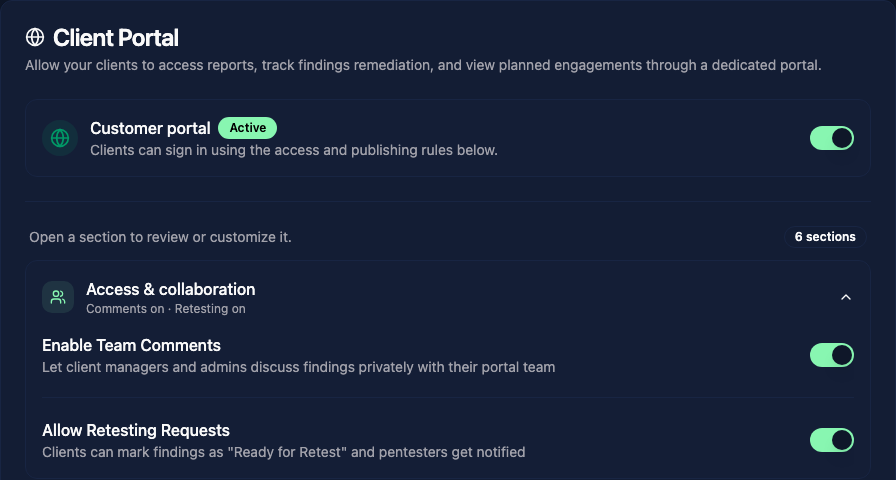
Enable the portal
Turn on Customer portal to allow client users to sign in. Expand the sections below it to configure access, publishing, email, branding, and downloads.
In Access & collaboration, Enable Team Comments lets client managers and administrators discuss findings privately with other members of their portal team.
Allow Retesting Requests lets clients move a finding to Ready for Retest. The assigned pentesters are notified when a retest is requested.
Report visibility
In Reports & publishing, On status change publishes a report when it reaches the selected status. Use Publish when status reaches to choose Draft, Waiting for Review, Under Review, or Completed.
Select Real-time if clients should see reports immediately. Findings will appear in the portal as they are added to the report.
Client notifications
Email notifications can be sent when a report is published, when a retest is completed, or when a report is marked as completed. Each notification can be enabled separately.
Portal branding
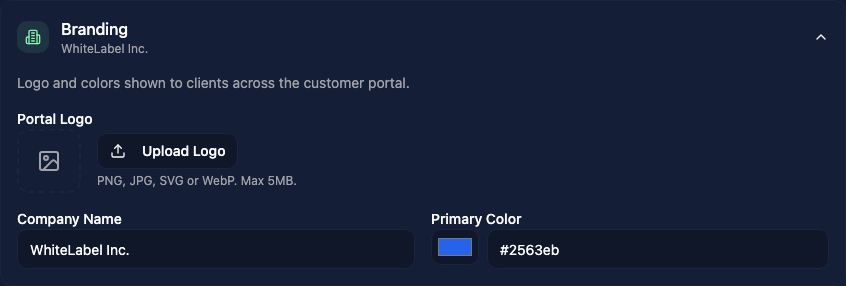
In Branding, add your company name, primary color, and logo to customize the portal shown to clients. The company name must be configured before sending invitations. Logos can be uploaded as PNG, JPG, SVG, or WebP files up to 5 MB.
Invitation email
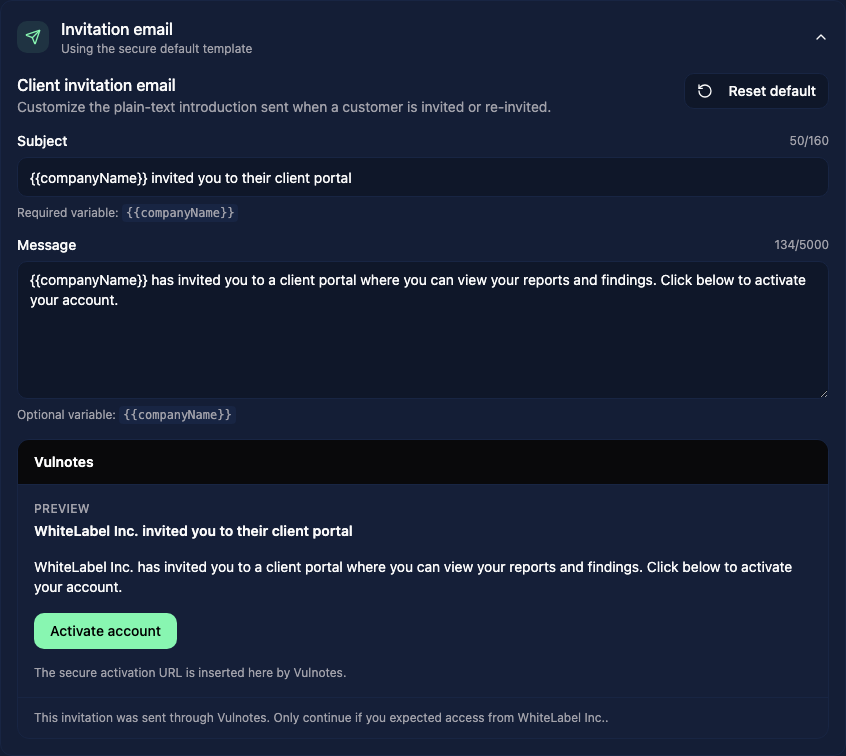
Expand Invitation email to edit the subject and plain-text message sent with portal invitations. Use for your company name; it is required in the subject and is the only supported variable.
Vulnotes adds the activation link automatically. Do not add links or HTML to the message. Check the preview, or click Reset default to restore the original wording.
Download formats
In Downloads, choose which report formats clients can download from the portal. PDF provides the archived report, while XLSX and CSV contain the report findings. DOCX provides an editable Word document.
PDF, XLSX, and CSV are enabled by default. Enable DOCX if clients should also receive an editable version of the report.
Click Save Changes after updating the Client Portal settings.
To invite the first client users and set their access period, open the company in Clients.