

Microsoft Entra ID
Vulnotes supports Microsoft Entra ID (formerly Azure AD) for signing in with a Microsoft work account, including accounts in your Microsoft 365 organization.
Before you start
- Sign in to the Microsoft Entra admin center with an account allowed to register and configure applications in your organization's tenant.
- Sign in to Vulnotes with an administrator account that can manage Settings → Security.
- Keep a working local administrator session available until browser SSO has been verified.
Microsoft 365 versus Entra
Application registrations are configured in the Microsoft Entra admin center, not the Microsoft 365 user or licence management page. This is an OpenID Connect application registration, not a SAML configuration.
1. Register a single-tenant application
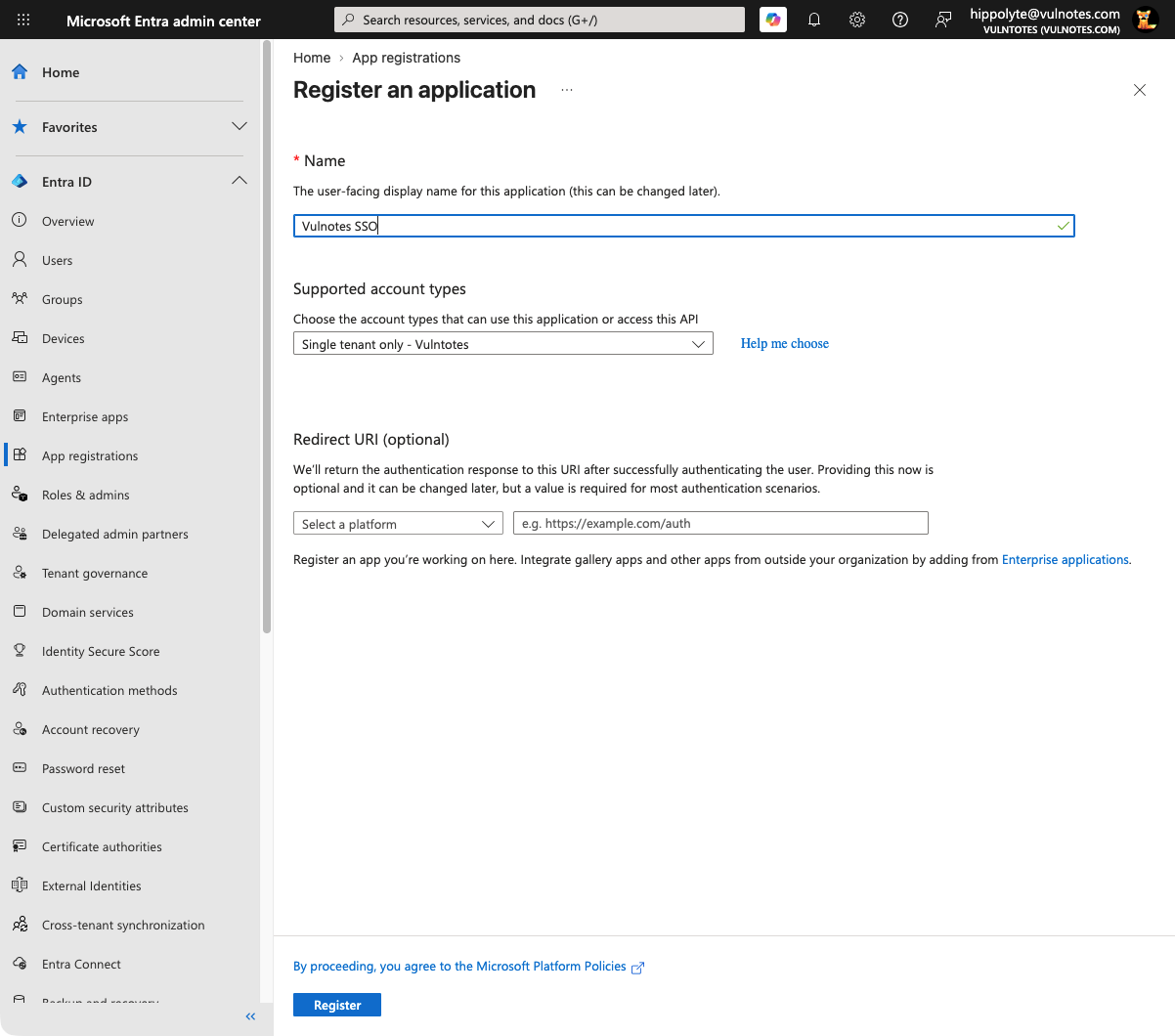
Open Entra ID → App registrations → New registration. Enter a descriptive name such as Vulnotes SSO, select Single tenant only — your organization, then select Register. You can leave the optional redirect URI empty for now: Vulnotes provides the exact value after its provider configuration is saved.
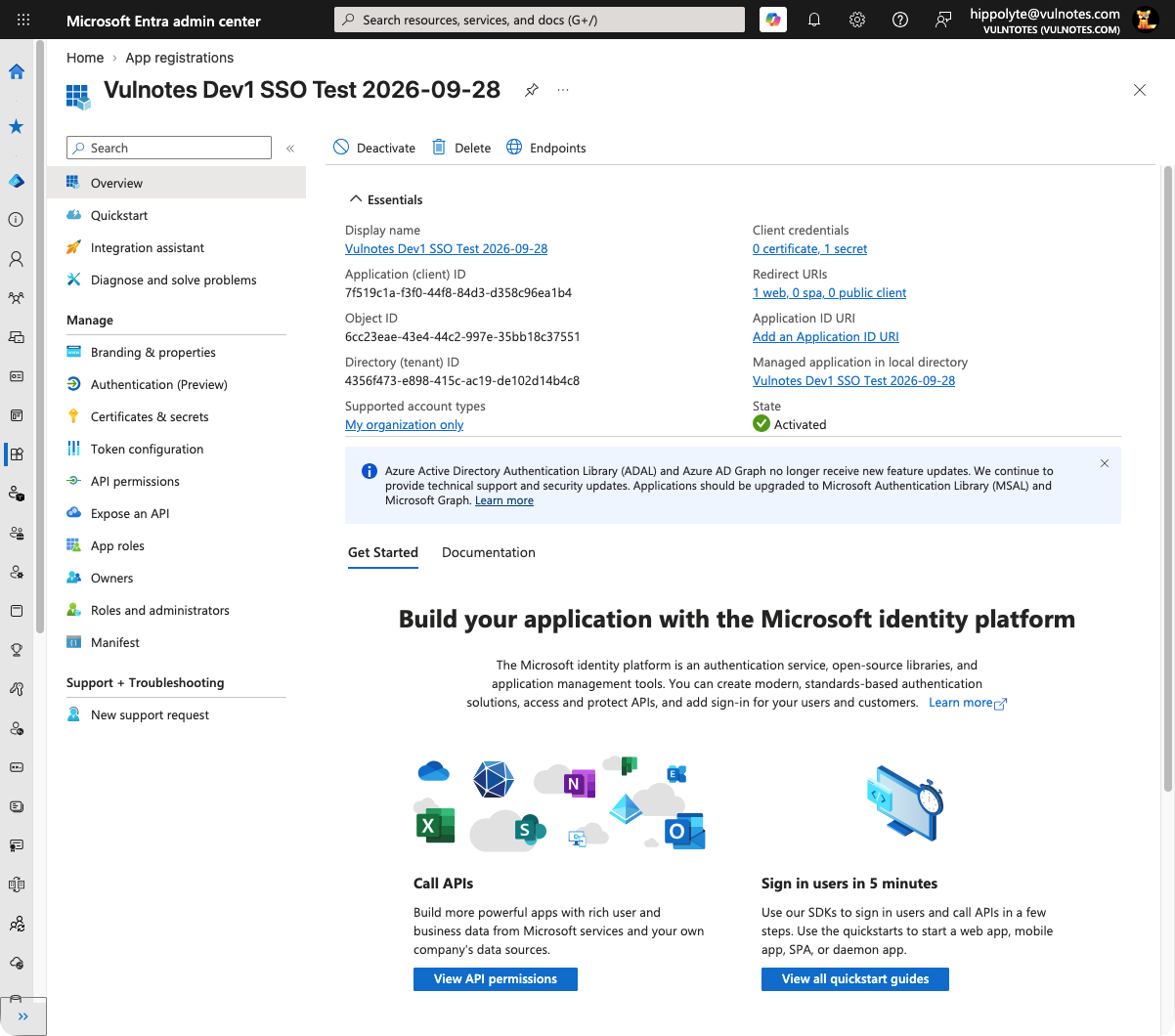
On the application's Overview, copy these two values:
| Entra field | Vulnotes field |
|---|---|
| Application (client) ID | Application ID |
| Directory (tenant) ID | Tenant ID |
Do not use the Object ID as the Application ID. If you are reopening an existing app and Owned applications is empty, check All applications.
2. Create a client secret
Open Certificates & secrets → Client secrets → New client secret. Enter a description, choose an expiry compatible with your organization's policy, then select Add.
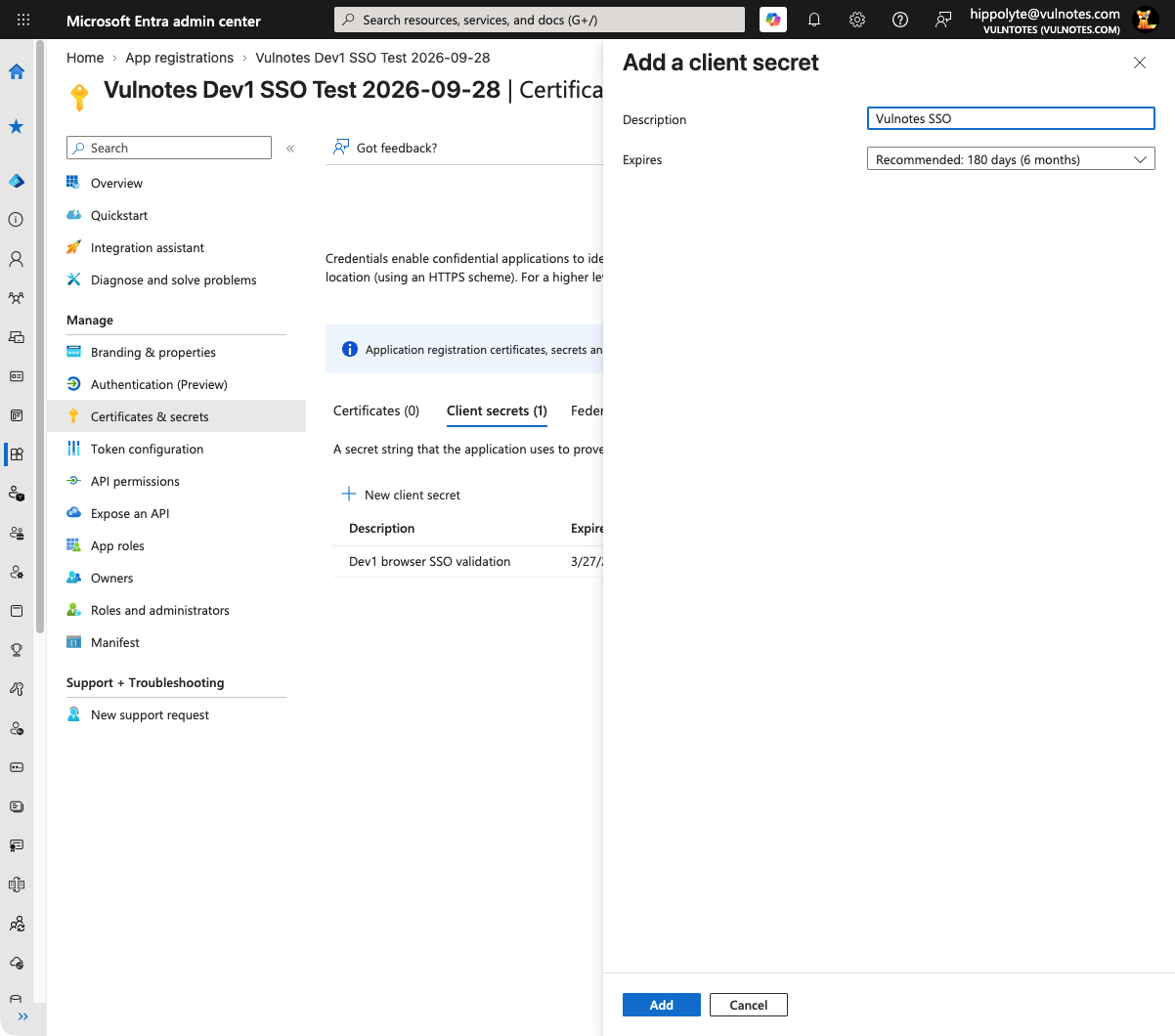
Copy the new secret's Value, not its Secret ID, and store it securely. The complete value is only available immediately after creation. If you have lost it, create a replacement rather than copying the masked value from the list.
3. Configure the provider in Vulnotes
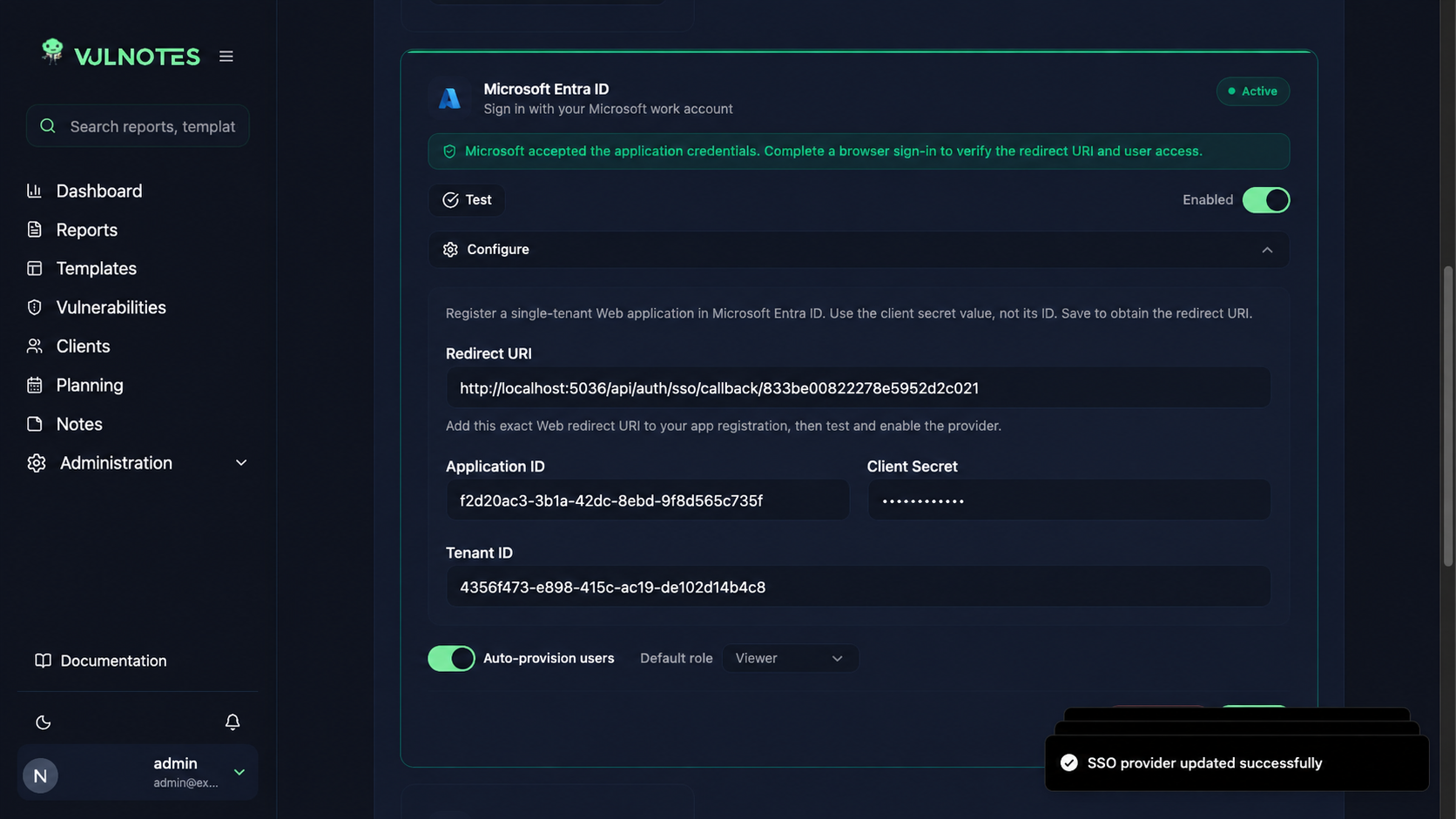
Go to Administration → Settings → Security, enable Enable SSO, and open Configure on the Microsoft Entra ID card.
Enter the Application ID, Tenant ID and Client Secret value from the previous steps. If users should be created at their first Microsoft sign-in, enable Auto-provision users and explicitly choose an appropriate Default role. Use a least-privileged role, not Administrator, for general staff onboarding. Save the configuration.
Existing local accounts are not automatically linked just because their email matches a Microsoft account. Vulnotes roles and account activation remain separate from Entra roles.
4. Register the exact Web redirect URI
After saving, copy the Redirect URI displayed in the Vulnotes provider configuration. It has this shape:
https://your-vulnotes-host/api/auth/sso/callback/<provider-id>In the same Entra app, open Authentication (currently labelled Authentication (Preview) in the captured portal), then Add Redirect URI. Choose the Web platform, paste the exact URI copied from Vulnotes, and save. In the older portal layout, use Add a platform → Web instead.
Do not choose Single-page application or substitute the application ID for the provider ID. Vulnotes handles the authorization-code exchange on its backend; implicit-grant access-token or ID-token checkboxes are not needed.
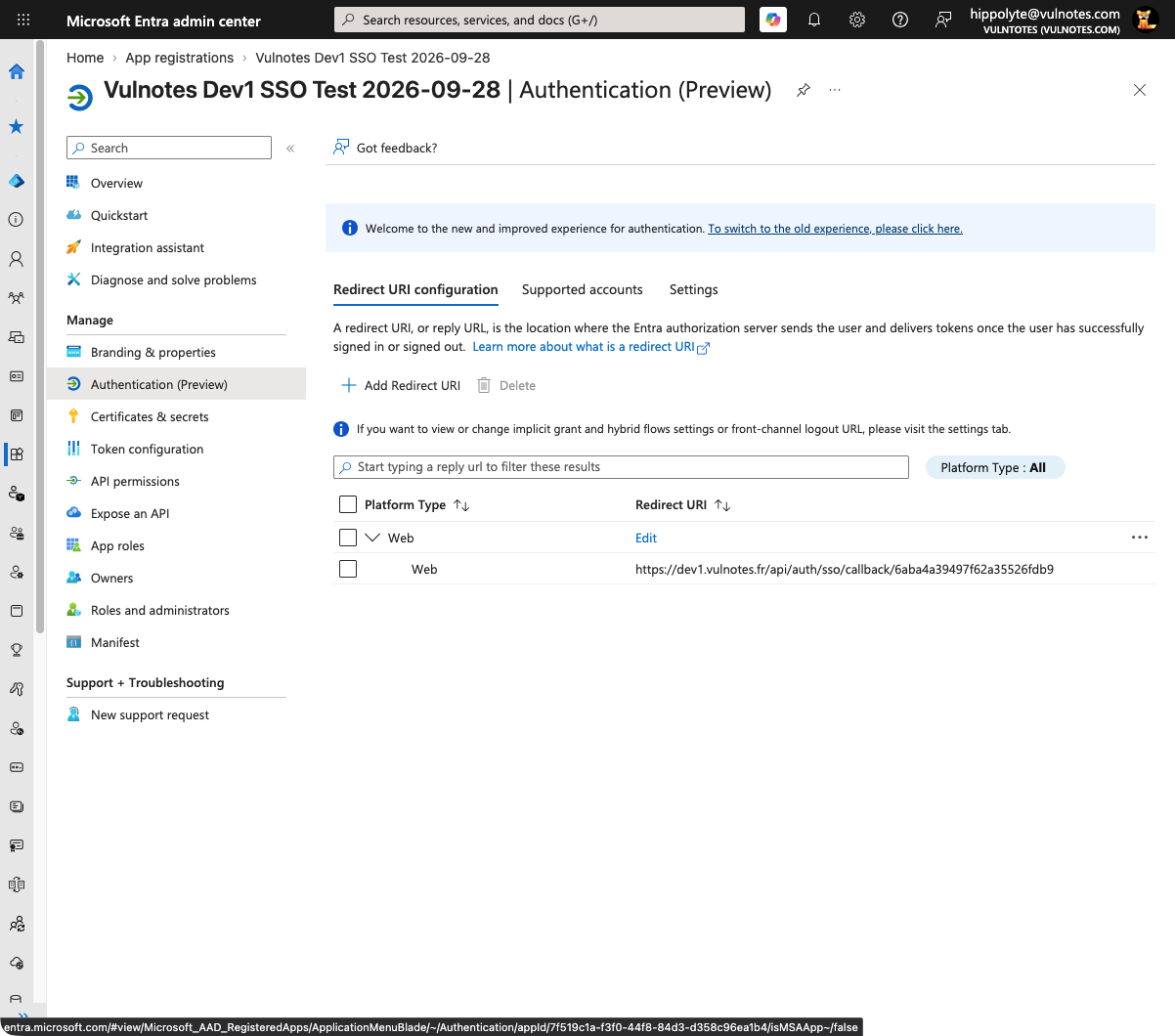
5. Test credentials, then test browser sign-in
In Vulnotes, select Test on the saved provider. A successful response says:
Microsoft accepted the application credentials. Complete a browser sign-in to verify the redirect URI and user access.
This confirms the tenant discovery and application credentials. It does not prove that the redirect URI or a particular user's access is correct.
Enable the Microsoft provider, then open the Vulnotes login page in a separate browser session. Select Continue with Microsoft Entra ID and complete the Microsoft sign-in. Depending on your tenant policy, Microsoft may require consent, administrator approval or MFA. An existing Microsoft session can sign you in without displaying another password prompt.
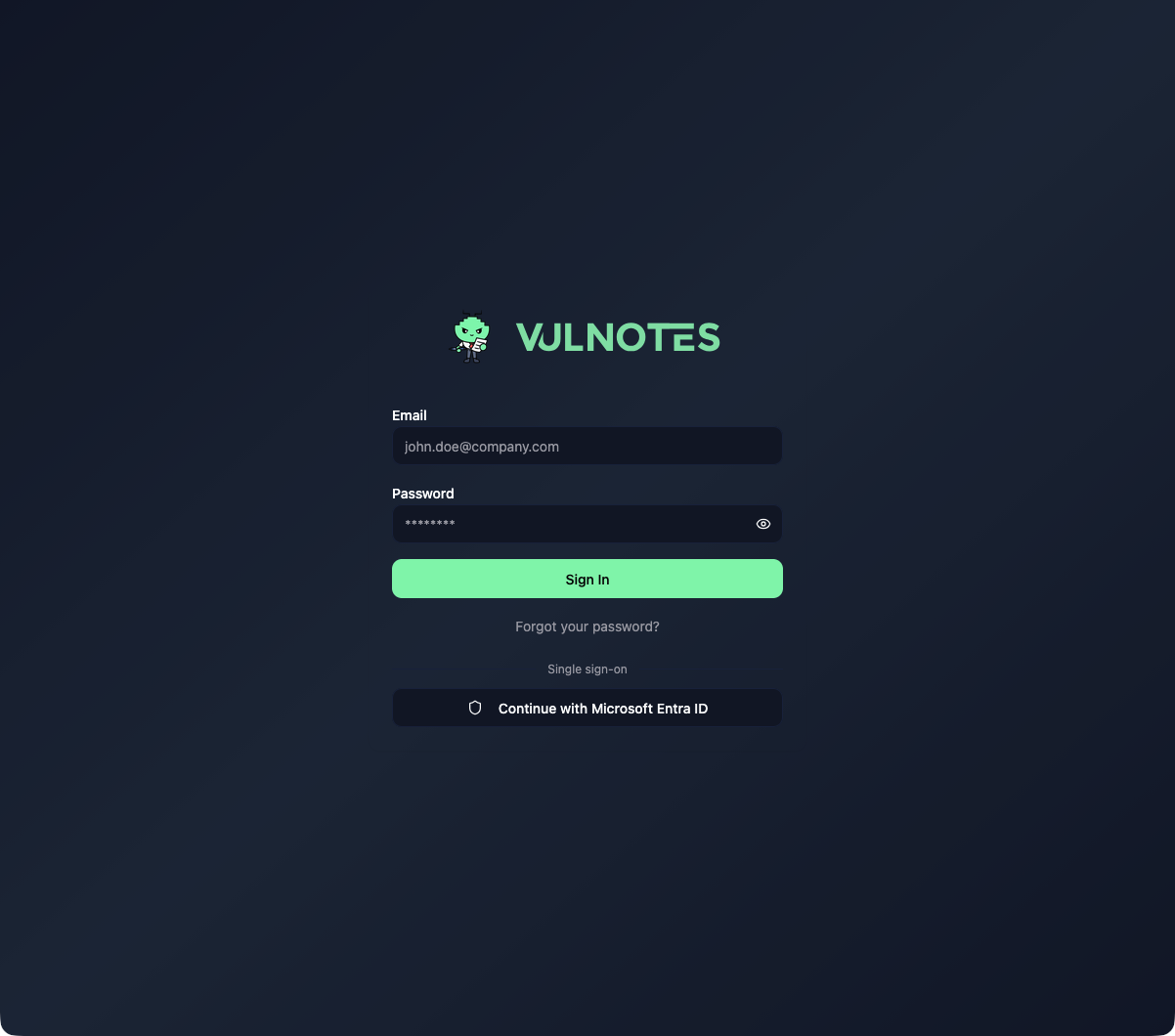
Confirm that you return to the Vulnotes dashboard, can reload it, and have the intended role. Keep local login available until these checks pass.