Azure DevOps Integration
The Azure Boards integration pushes findings to a private Azure DevOps Services project, so clients can track remediation with their development team.
When a work item is resolved or completed, the linked finding can move automatically to the status selected in the integration settings.
Connect Azure Boards
Open Integrations from the Client Portal sidebar and select Azure Boards. Enter the organization name, project name or ID, and personal access token.
Use a token for that organization with Work Items: Read & write and Project and Team: Read permissions.
Choose a work item type supported by your project, such as Task, and optionally add an area path or assignee. Select the Vulnotes status to apply when the work item is completed.
Click Save, then Test Connection. The test uses the saved settings and does not create a work item.
Create a ticket
Open a finding in the Client Portal and click Create ticket to send it to Azure Boards. This action is available to managers and administrators.
The work item includes the report name, severity, CVSS score and vector, finding details, and a link back to Vulnotes.
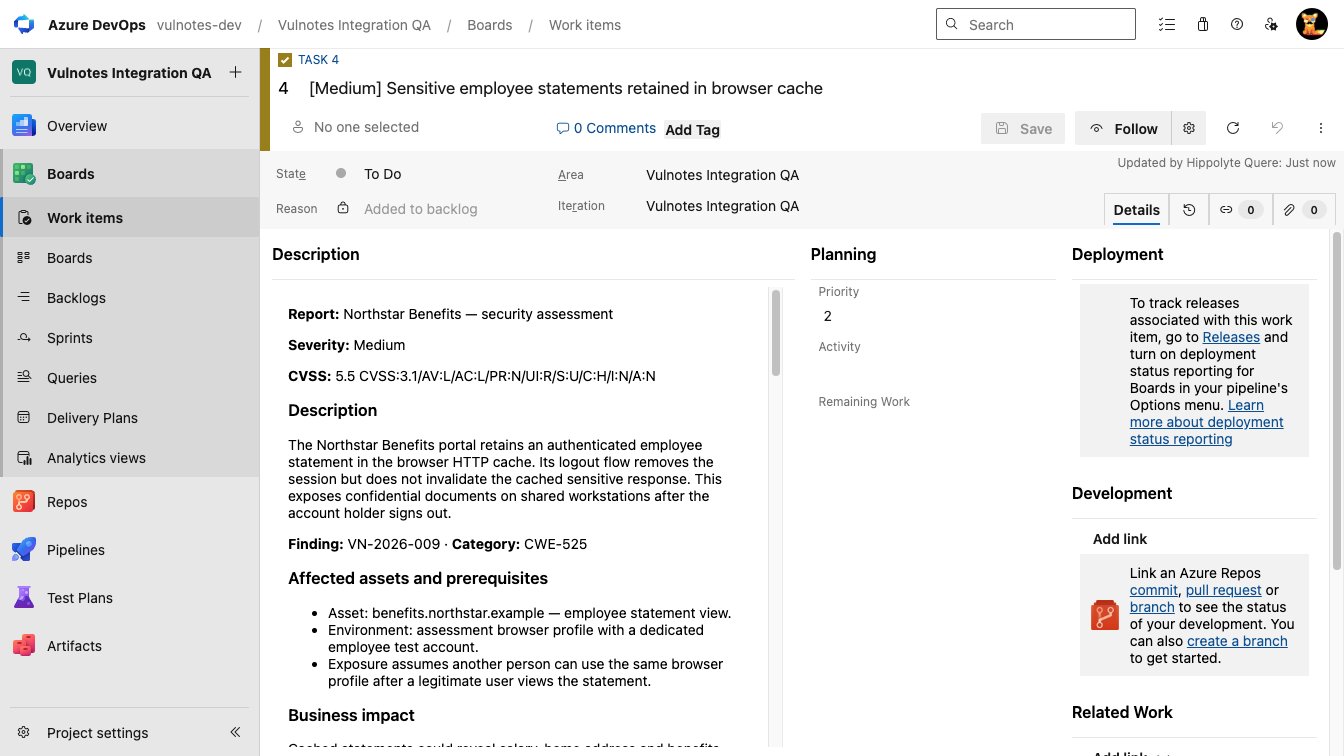
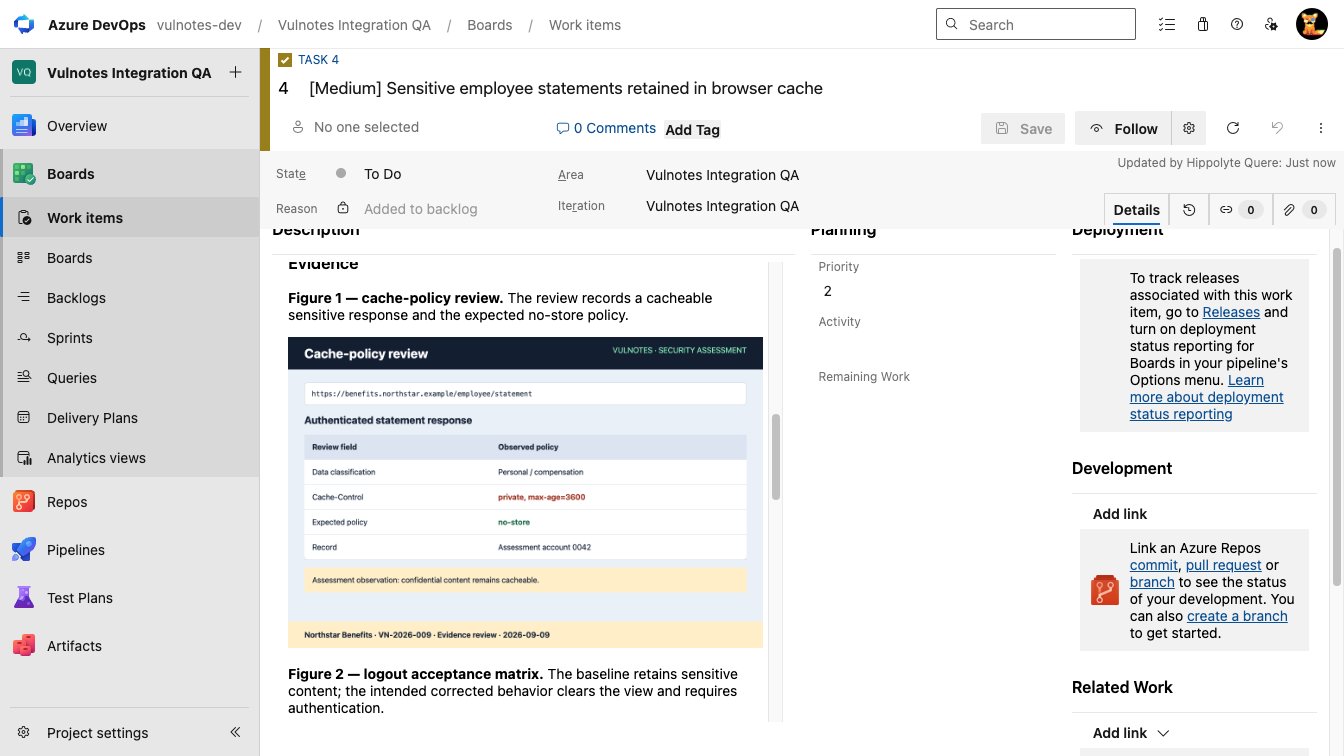
Evidence images appear directly in the work item description, beside their captions.
Configure status updates
Copy the Inbound Webhook URL and Webhook password shown after saving the integration.
In Azure DevOps, open Project settings → Service hooks and create a Web Hooks subscription for Work item updated. Select State as the changed field and keep resource details enabled.
Use the Vulnotes URL as the destination, with Basic authentication username vulnotes and the copied webhook password. The URL must be reachable over HTTPS.
Resolved or completed work items move the linked finding to the configured status. Reopening a work item preserves the finding's remediation status.
TIP
Use Ready for Retest if your team wants completed work items to return to the pentesters for validation.
Azure Boards integration settings are managed by client administrators.