
GitHub Integration
The GitHub Issues integration sends findings to a private GitHub repository so your team can track remediation alongside its development work. Completing an issue can automatically move the linked Vulnotes finding to the status selected in the integration settings.
Integration settings are managed by client administrators. One tracker is active per company; switching providers preserves saved configurations and existing ticket links. Incoming status updates are processed for the active provider.
Connect GitHub
Use a private repository on GitHub.com with Issues enabled. Public, archived, or disabled repositories are not accepted. GitHub Enterprise Server is not supported by this connector.
- In GitHub, create a fine-grained personal access token for the repository owner. Limit repository access to the repository that will receive findings.
- Grant Issues: Read and write. Metadata: Read is included automatically. Repository contents and webhook-management permissions are not required by the connector.
- Open Integrations in the Client Portal and select GitHub Issues under Issue tracker.
- Enter Repository owner, Repository name, and Personal access token. Enter the names separately, rather than pasting the repository URL.
- Choose On issue completed, set finding to, then click Save and Test Connection.
The connection test checks the saved token, repository privacy, and issue-read access without creating an issue. The first ticket export also checks write access. If your organization requires token approval, obtain that approval before testing.
Changing the owner or repository clears the previous token and rotates the webhook secret. Enter a token for the new destination and update its webhook. Replace expired or revoked tokens in the same form, then save and test again.
Create a ticket
Open a finding in the Client Portal and click Create ticket. Managers and administrators can export findings visible to their company. The finding then displays a link to its GitHub issue and the latest synchronized ticket status.
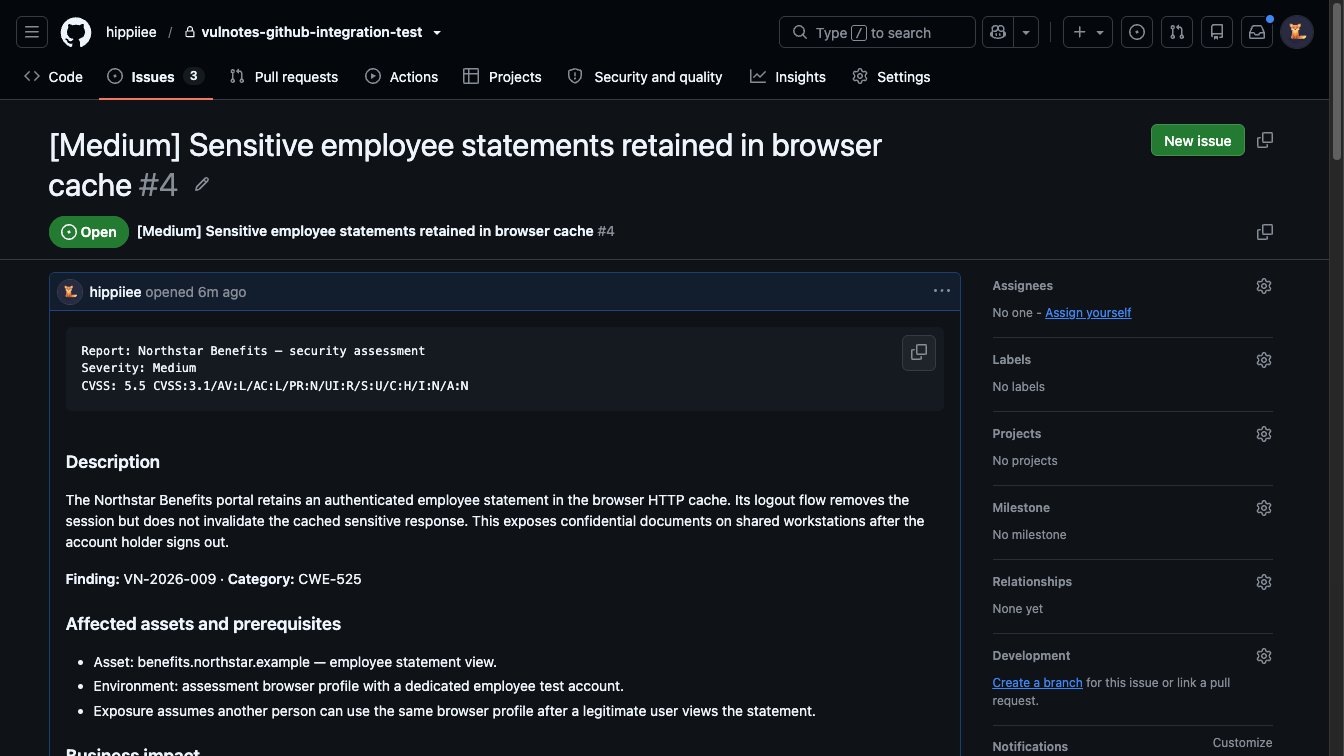
The issue includes the report name, severity, CVSS score and vector, formatted finding sections, and a link back to the authenticated portal. The example below shows a complete finding with its description and affected assets.
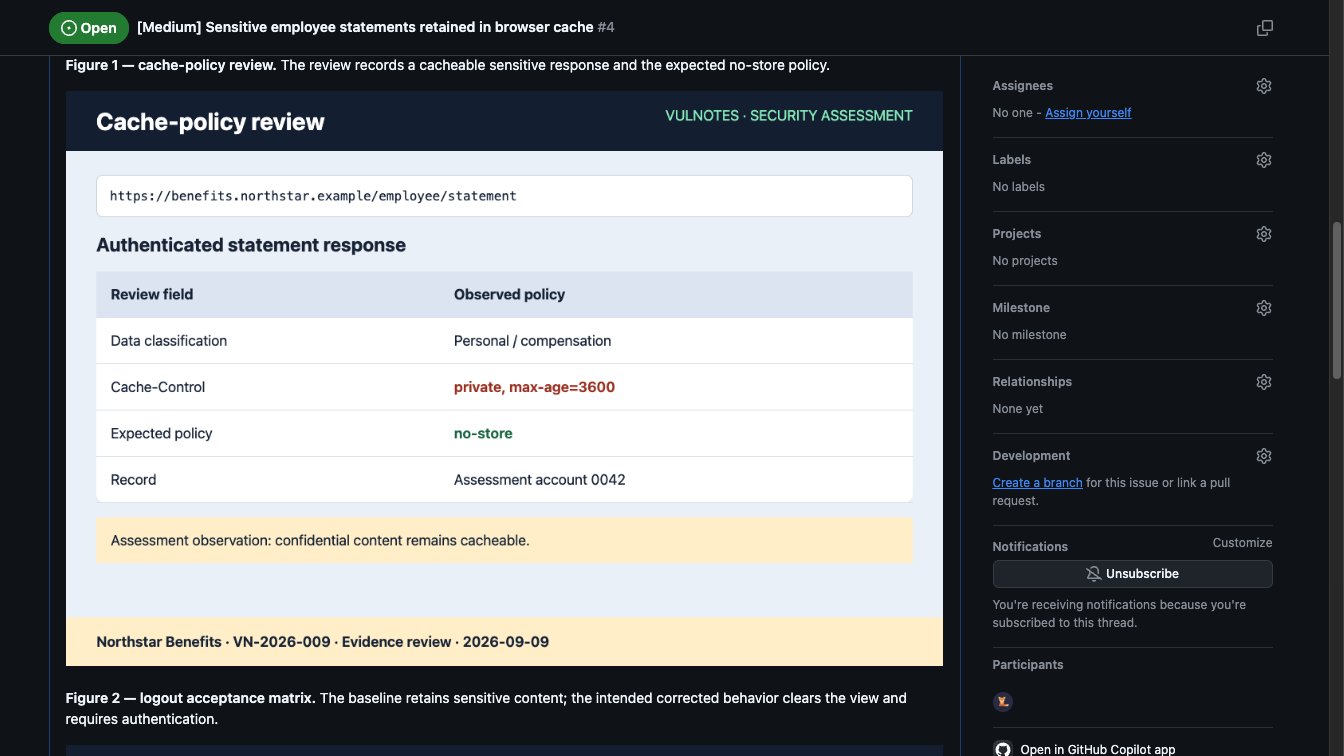
Evidence images appear beside their captions in the issue body. Vulnotes creates the image links automatically during export; no manual upload or repository commit is needed.
Configure status updates
After saving the integration, copy its Inbound Webhook URL and Webhook secret.
In the repository's Settings → Webhooks, add a webhook with:
| Setting | Value |
|---|---|
| Payload URL | The Vulnotes inbound webhook URL |
| Content type | application/json |
| Secret | The webhook secret shown in Vulnotes |
| SSL verification | Enabled |
| Events | Select individual events and enable Issues |
The webhook URL must be publicly reachable over HTTPS. Vulnotes verifies the webhook signature before accepting updates. See GitHub's webhook setup guide for repository access requirements.
Closing an issue as completed applies the configured finding status. Closing it as not planned, or reopening it, updates the linked ticket status while preserving the finding's remediation status. Changing a finding's status in Vulnotes does not change the GitHub issue.
TIP
Choose Ready for Retest to return completed issues to the pentesters for validation. Choose Fixed only if completion in GitHub should mark the finding fixed immediately.
Evidence access and expiry
Images remain hosted by Vulnotes. Each exported image receives an unguessable link with a separate random access token. New links expire after 365 days by default; an installation administrator can configure a shorter lifetime. The finding's ticket panel shows its actual expiry date. Existing links retain the expiry assigned when they were created.
Managers and administrators can click Revoke image links in the finding's ticket panel. Hiding the finding, removing its report, or withdrawing access to its source image also prevents further reads from Vulnotes. Other file attachments remain in the authenticated portal.
Image links grant access
Anyone holding a complete image link can view that image until expiry or revocation. GitHub proxies external images through Camo, and copies already downloaded or cached by GitHub may remain after revocation. See GitHub's explanation of anonymized image URLs.
An installation administrator must configure a stable public HTTPS API origin for images. TICKETING_EVIDENCE_BASE_URL defaults to API_URL; TICKETING_EVIDENCE_TTL_DAYS accepts 1–365 days and applies to new exports. Image-link expiry is separate from the GitHub token's expiry. Expired image links are not renewed automatically.
Troubleshooting
- Connection fails: check repository privacy, Issues availability, token permissions, expiry, and any organization approval requirement. Save before testing.
- An image cannot be exported: import remote images into the current Vulnotes report first. Supported formats are PNG, JPEG, GIF, and WebP; exports allow up to 10 images, 5 MiB each, and 20 MiB total.
- Images stop loading: check their expiry or revocation state and the public image endpoint. The original evidence remains available through the portal according to normal access permissions.
- Creation requires review: after a timeout, GitHub may already have created the issue. An administrator should inspect the repository before retrying; Vulnotes blocks automatic retries when the outcome is uncertain.