

Viewers
A Viewer is a read-only account for people who need to read reports or follow the planning without working in Vulnotes, such as account managers, auditors or a security manager. Viewers are a license add-on with their own seat pool, separate from user seats.
Vulnotes has two account types:
- User - normal Vulnotes user. Takes a user seat and holds User roles.
- Viewer - read-only user. Takes a Viewer seat and holds Viewer profiles only.
The Viewers tab, the Account type choice and Viewer profiles only appear when the add-on is in your license. Viewers are not available on the single-user Air-Gap Workstation.
What a Viewer can do
A Viewer opens the areas its Viewer profile enables and downloads the exports it allows. Within those areas, the Viewer's team decides which clients and reports it sees, as for any other account.
A Viewer never writes anything, whatever its profile says. It cannot:
- create, edit or comment on reports, findings, notes or planning events
- use AI features or integrations
- hold API keys, so it has no access to the API or MCP
- be a report contributor or reviewer, or be assigned to a planning event
Reports open read-only, without live collaboration. A Viewer can still update its own profile, password, two-factor authentication and sessions, and read its notifications.
Invite a Viewer
Go to Administration > User Management and open the Viewers tab. It is shown to users with Manage Users (rw:users) when the add-on is licensed.
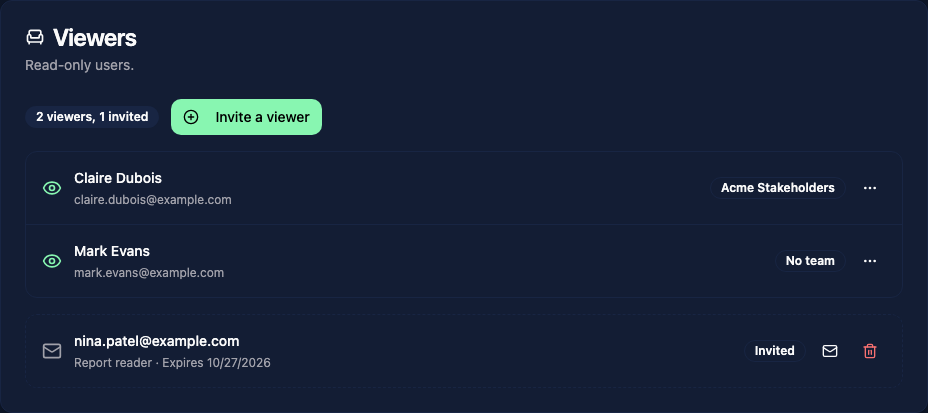
The tab shows:
- the seat counter: Viewers in use, the seat limit, and the invitations holding a seat ("2 / 5 viewers, 1 invited")
- Invite a viewer, and Get more seats for system administrators
- Viewer accounts, each with its team, or No team
- Viewer invitations that have not been accepted yet, with buttons to resend or cancel them
Click Invite a viewer. The invitation dialog opens with Account type set to Viewer, and the role list becomes Viewer profile, with Report reader selected when it exists. Enter the email addresses, choose a Default Team, and click Send Invitations. If no Viewer profile exists yet, the dialog offers Create default profiles.
You can also choose Viewer under Account type in the Add User dialog of the Users tab. Viewers are listed in the Users table too, with Viewer in the Account type column.
Viewer profiles
A Viewer profile is a role of the kind Viewer profile. Create one from Administration > Roles & Permissions: click New Role and set Kind to Viewer profile.
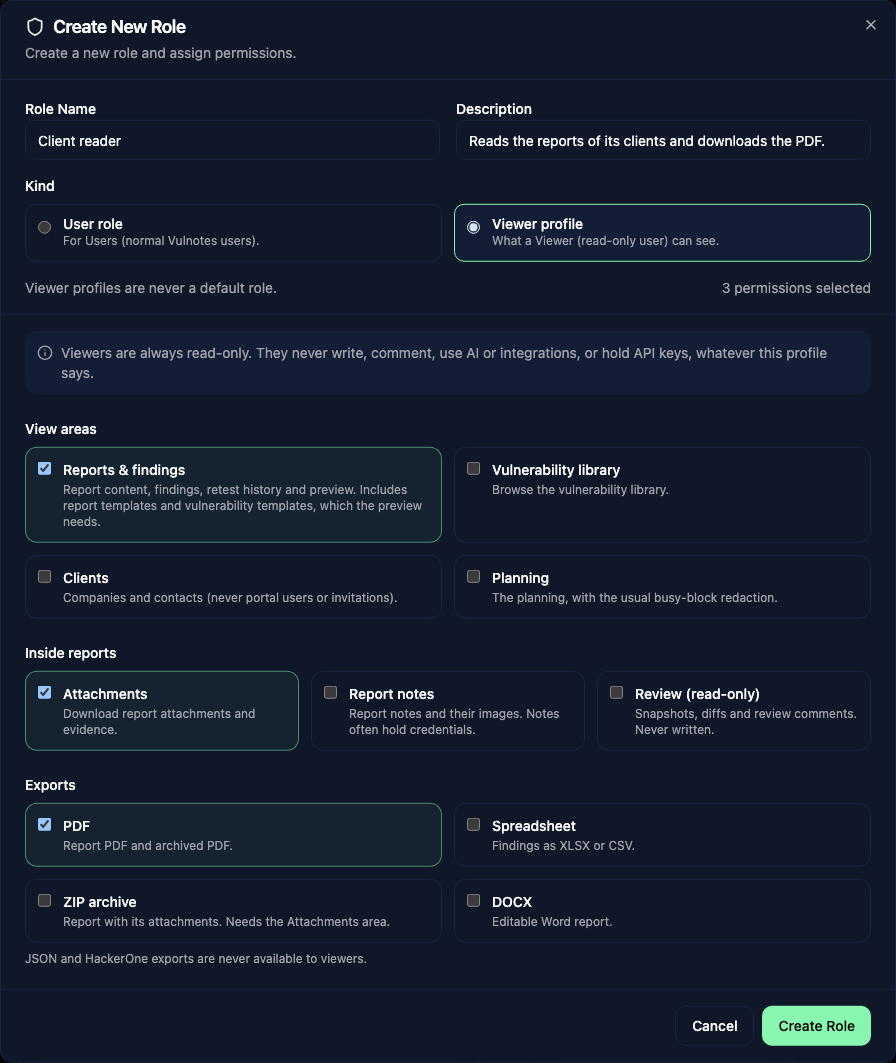
View areas decide which parts of the app the Viewer can open:
- Reports & findings - report content, findings, retest history and preview
- Vulnerability library - the vulnerability library
- Clients - companies and contacts, never client portal users or invitations
- Planning - the planning calendar, with the usual busy blocks for events the Viewer cannot see in detail
Inside reports and Exports need the Reports & findings area:
| Switch | Default | Effect |
|---|---|---|
| Attachments | On | Download report attachments and evidence. |
| Report notes | Off | Read report notes and their images. Notes often hold credentials. |
| Review (read-only) | Off | Read snapshots, diffs and review comments. |
| On | Report PDF and archived PDF. | |
| Spreadsheet | Off | Findings as XLSX or CSV. |
| ZIP archive | Off | Report with its attachments. Needs Attachments. |
| DOCX | Off | Editable Word report. |
JSON and HackerOne exports are never available to Viewers.
Default profiles
While no Viewer profile exists, the Roles & Permissions page shows Create default Viewer profiles. It adds two profiles:
| Profile | Access |
|---|---|
| Report reader | Reports and findings, report notes and attachments, and every export (PDF, spreadsheet, ZIP and DOCX) |
| Planning viewer | The planning only |
Profile rules
- A Viewer needs at least one Viewer profile. With several profiles, it gets everything each of them allows.
- A Viewer profile can only grant read permissions: View Reports, View Templates, View Vulnerabilities, View Vulnerability Templates, View Clients and View Planning.
- A Viewer profile cannot be the default role for new users, or the default role of an SSO provider.
- The kind of a role cannot change while accounts hold it.
Team restrictions for Viewers
A Viewer in a team sees the clients and reports its team can access (see Teams). The team dialog has a Viewers tab with Viewer restrictions that apply to the Viewers of that team only. Only system administrators can change them.
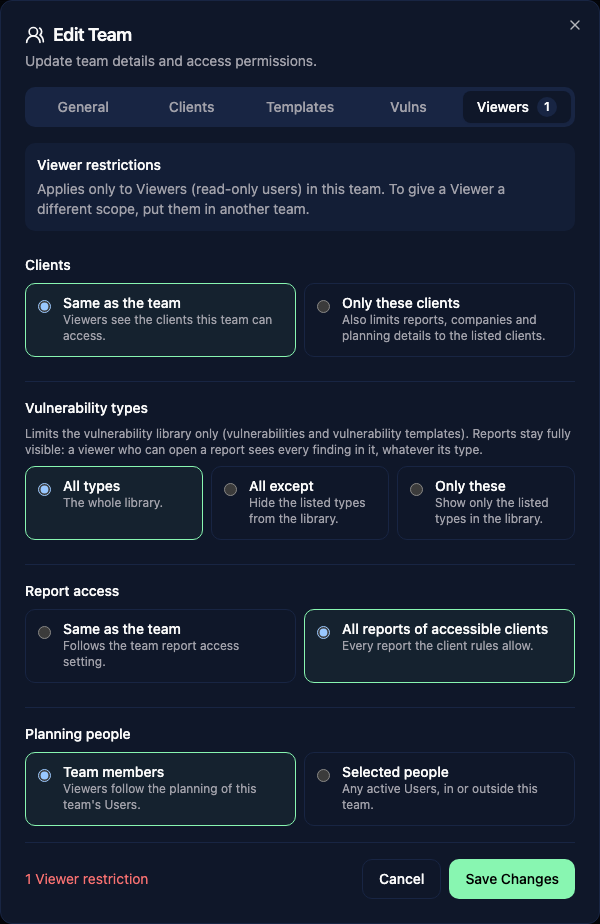
| Setting | Options |
|---|---|
| Clients | Same as the team, or Only these clients. A client list also limits reports, companies and planning details to those clients. |
| Vulnerability types | All types, All except or Only these. Limits the vulnerability library only: a Viewer who can open a report sees every finding in it. |
| Report access | Same as the team, or All reports of accessible clients. Shown when the team uses Only reports they work on. |
| Planning people | Team members (the planning of the team's Users), or Selected people (any active Users, in or outside the team). |
Viewers never work on reports. In a team set to Only reports they work on, they see no report unless Report access is All reports of accessible clients. The dialogs warn about this and offer Let Viewers see all reports.
To give a Viewer a different scope, put it in another team.
WARNING
A Viewer without a team sees every report, client and planning event its profile allows. User Management marks these accounts with a No team badge.
Change an account between User and Viewer
Open the account with View Details, change Account type, choose the Viewer profile (or the User roles) and click Save User. A confirmation dialog lists what changes before anything is saved.
Change to Viewer:
- The account is signed out everywhere and its API keys are disabled.
- Its planning assignments are hidden, and it can no longer be scheduled.
- It loses contributor access to reports. For each report in progress where it is the reviewer, choose a new reviewer or Clear the reviewer. Only users with Edit Reports can choose a new reviewer.
- Its User roles are replaced by the Viewer profile chosen in the form.
Change to User signs the account out everywhere and gives it the roles chosen in the form. The account then takes a user seat.
You cannot make your own account a Viewer. Accounts created by SSO sign-in are always Users: change them to Viewer after their first sign-in.
Seats
Viewer seats are counted separately from user seats. An active Viewer takes one seat, and a pending Viewer invitation holds one until it is accepted, cancelled or expires. Deactivated Viewers do not take a seat.
When every seat is in use, Vulnotes refuses new Viewer invitations and conversions to Viewer with "All viewer seats are in use." Cancel an invitation, delete a Viewer, or add seats.
If your license has fewer Viewer seats than you have Viewers, the Viewers who became Viewers first keep access. The newest ones cannot sign in until you delete Viewers or add seats. If the add-on is removed from your license, Viewers can no longer sign in: change their accounts to User or delete them.
On connected deployments, Get more seats opens billing in Vulnotes Manager. It is on the Viewers card of the License page, and on the Viewers tab for system administrators. A reduction takes effect at renewal. On air-gapped deployments, Viewer seats are part of the signed license: contact your Vulnotes account manager to add or remove them.