

Pentest Requests
Pentest requests let clients ask for a new assessment from the Client Portal. The client fills in a form you design, attaches documents, and follows the request while your team reviews it. Both sides discuss the details in a conversation attached to the request.
Enable pentest requests
Open Clients > Client portal, expand Client collaboration, and turn on Pentest requests. Click Save changes.
If you turn the option off later, existing requests are kept. Clients and your team no longer see them until the option is turned on again.
Customize the request form
With Pentest requests on, expand Customize request form in the same section. The builder lists the fields in the order clients see them. Select a field to edit it in Field properties.
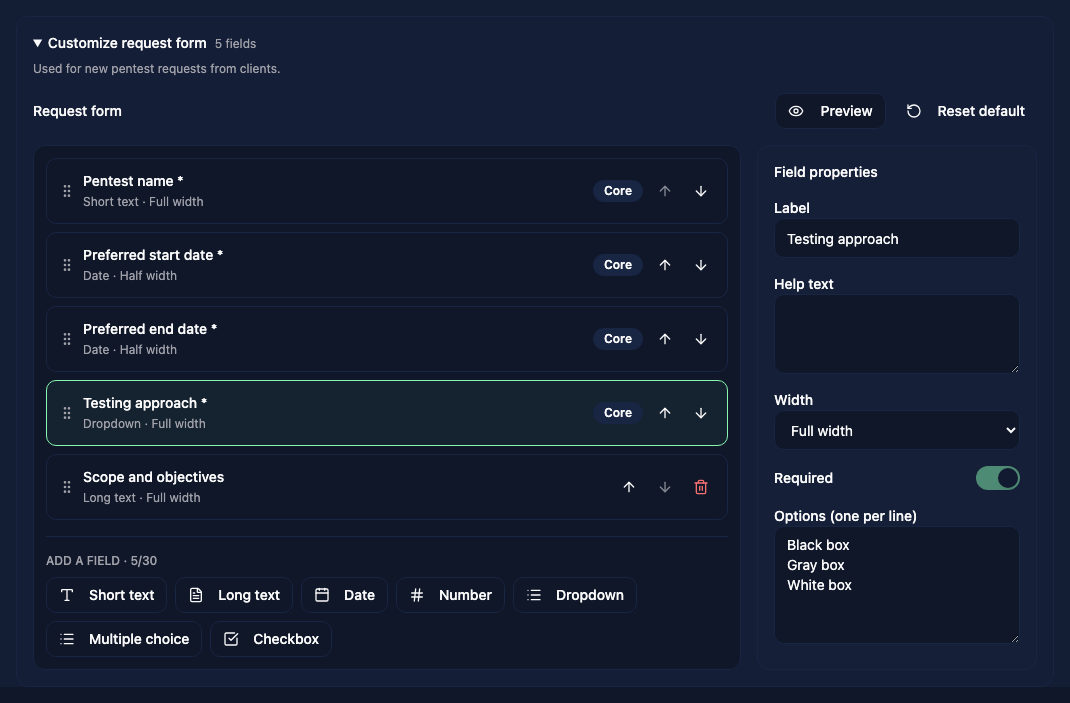
Under Add a field, choose a field type:
| Type | What the client enters |
|---|---|
| Short text | One line of text |
| Long text | Several lines of text |
| Date | A date |
| Number | A number |
| Dropdown | One option from a list |
| Multiple choice | Any number of options from a list |
| Checkbox | Yes or no. A required checkbox must be ticked |
Each field has a Label, optional Help text shown under the field, a Width (Full width or Half width), and a Required switch. For Dropdown and Multiple choice, enter the choices in Options (one per line).
Drag a field by its handle or use the arrows to change the order. Click Preview to see the form as clients will, and Edit form to return to the builder. Reset default restores the original fields.
Every label must be unique. Four core fields are always required and cannot be removed:
- Pentest name - used as the request title
- Preferred start date and Preferred end date - the end date cannot be before the start date
- Testing approach - Black box, Gray box, or White box by default
The default form also has an optional Scope and objectives field, whose help text asks clients not to include passwords or access credentials. You can edit or remove it.
Click Save changes to apply the form. Requests already submitted keep the form they were submitted with.
Request a pentest (client side)
When the option is on, the Client Portal sidebar shows Pentest requests to every portal user. Client administrators and managers can click Request a pentest, fill in the form, and click Submit request. Viewers can open requests and their conversations but cannot submit, change, or reply to them.
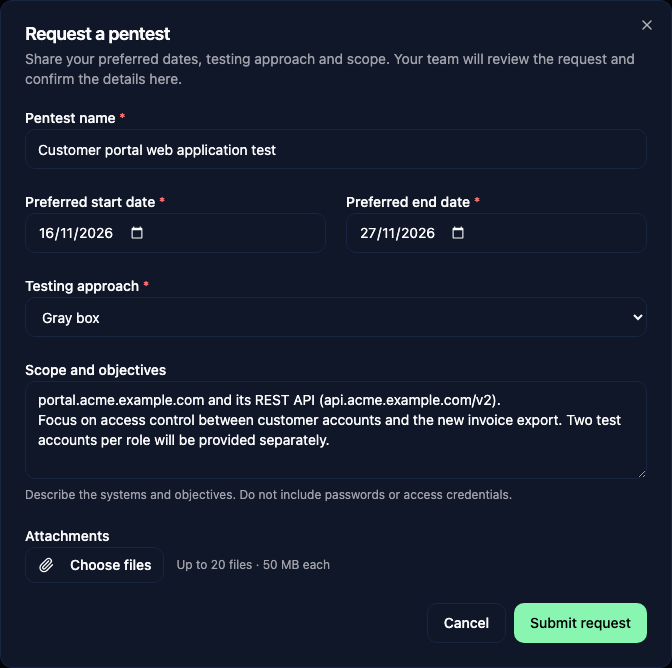
Client administrators and managers can also send messages and click Cancel request while a request is open (Submitted, Under review, or Accepted).
Attachments
Clients can add files when submitting the request with Choose files, or later from the request's Attachments section, then click Attach files.
Everyone who can see the request can download its attachments. Client administrators and managers, and your users with Edit permission on Companies, can add files and remove them. Removing a file asks for confirmation and removes it from the request for everyone.
Review requests
Open Clients > Requests. The tab appears when the Client Portal is licensed and turned on, pentest requests are enabled, and you have View permission on Companies. It lists requests from the companies your team can access. Use the status filter to narrow the list, and select a request to open it.
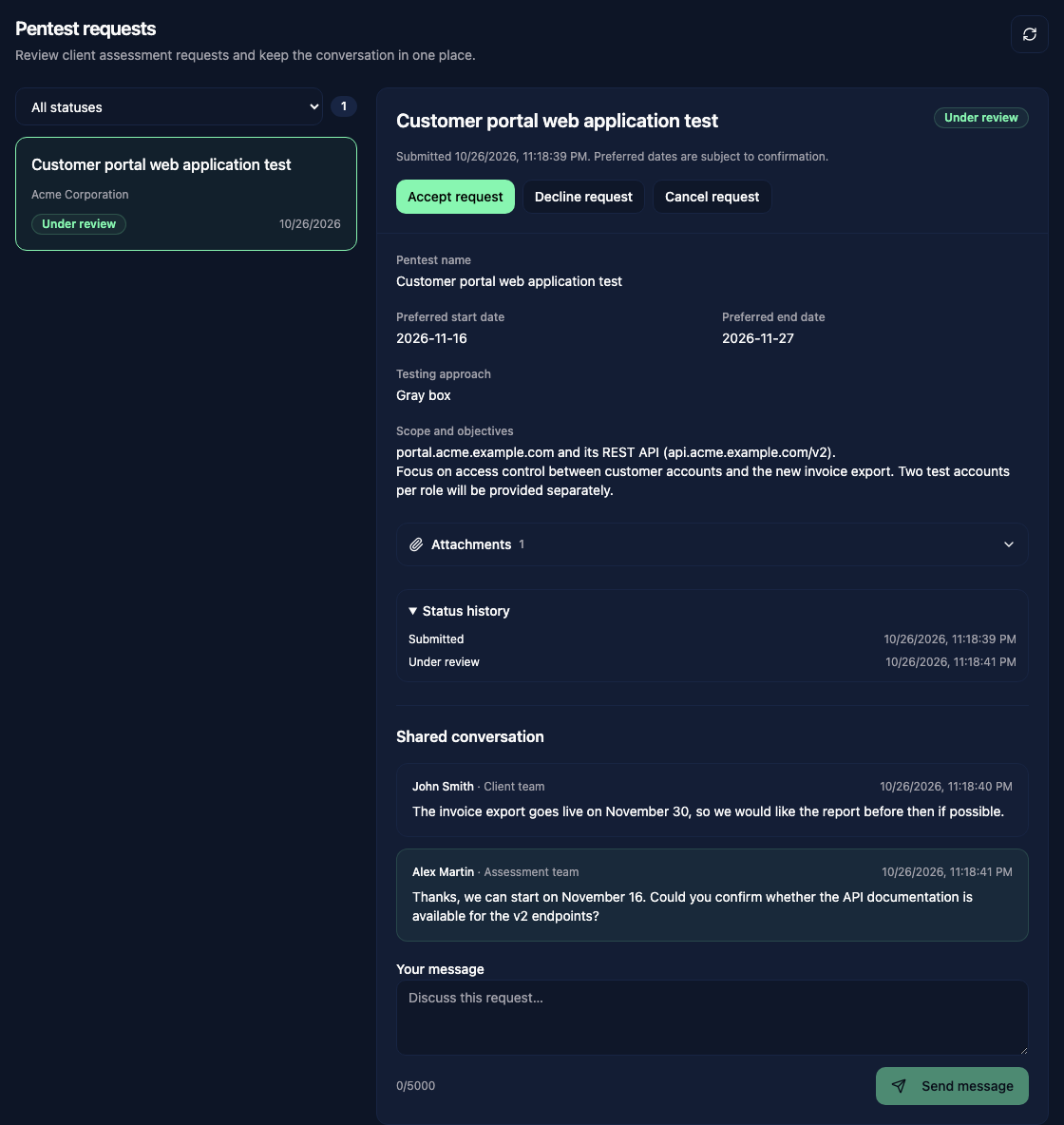
Users with Edit permission on Companies can change the status. Each change asks for confirmation and is recorded in Status history.
| Current status | Available actions |
|---|---|
| Submitted | Start review, Accept request, Decline request, Cancel request |
| Under review | Accept request, Decline request, Cancel request |
| Accepted | Mark completed, Cancel request |
Declined, Cancelled, and Completed requests are closed. Accepting a request does not create a report or reserve dates in the planning calendar. Schedule the assessment and create its report as usual.
Shared conversation
Each request has a Shared conversation visible to the client's portal users and to your team. Messages are labeled Client team or Assessment team.
Client administrators and managers, and your users with Edit permission on Companies, can send messages.
Notifications
A new request, each status change, and each new message send an in-app notification and an email to:
- the client administrators and managers of the company, unless their portal access has expired
- your users with Edit permission on Companies who can access the company
The person who made the change is not notified, except that the client who submits a request receives a confirmation. Emails contain no request details, only a link to the requests page.
If some notifications cannot be delivered, the change is still saved and a warning asks you to check email delivery with your administrator.